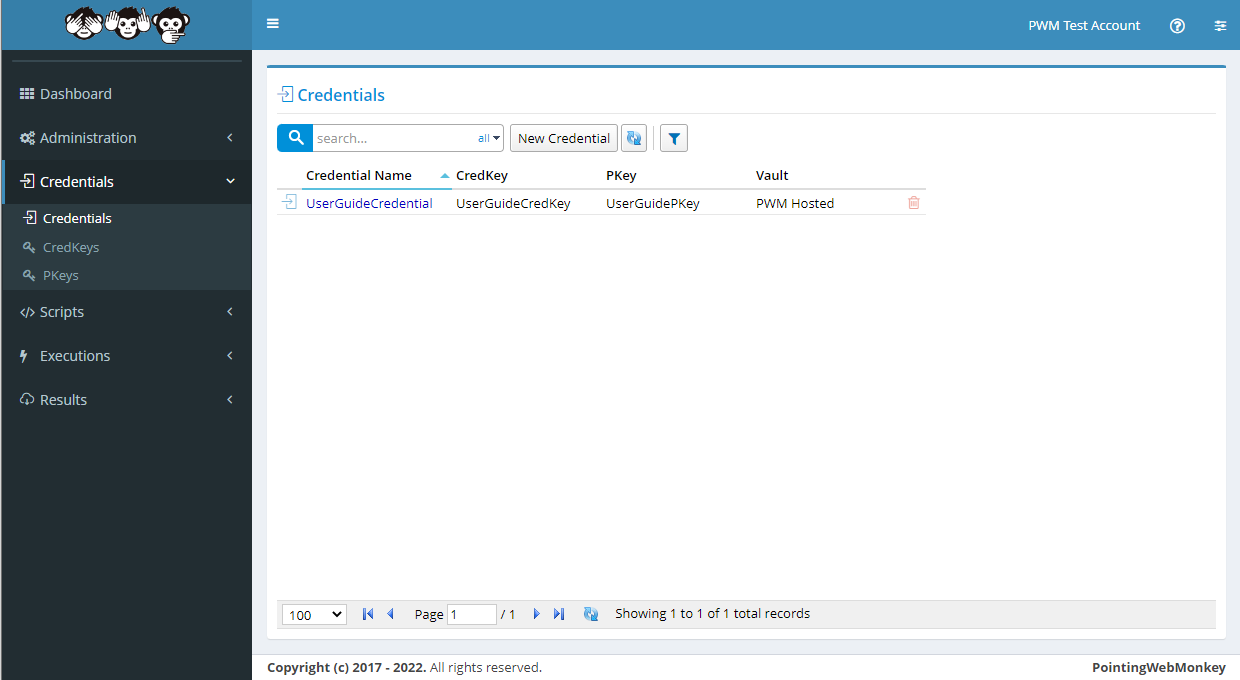
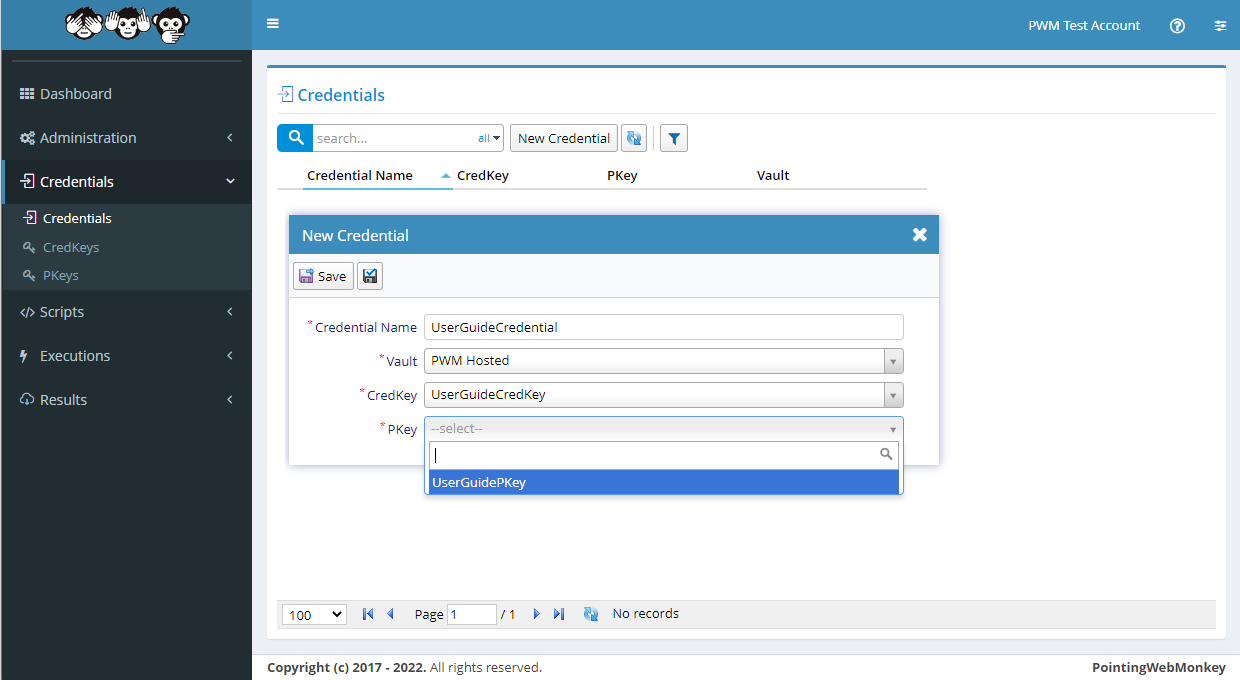
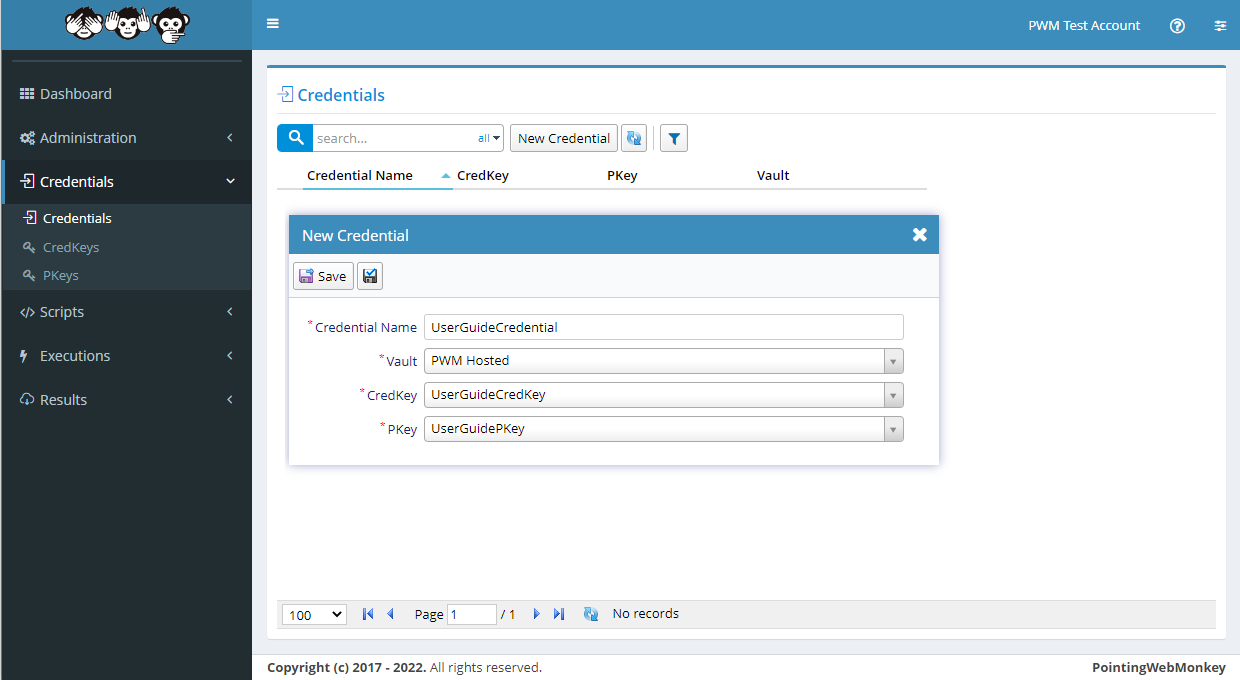
A Credential is made up of a "CredKey" and a "Pkey" and without either of these a Credential cannot be created
This step by step guide will show how to create both a "CredKey" and a "Pkey" and use these to create a "Credential"
Note: it doesn't matter the order in which a "CredKey" or "Pkey" are created
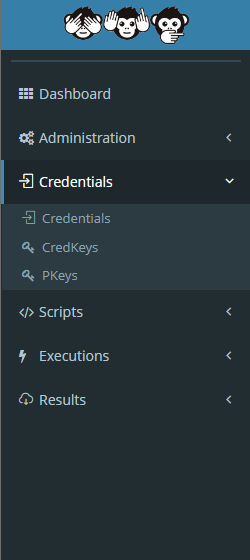
From the navigation menu on the left, click on "Credentials". This displays a sub-menu of three options
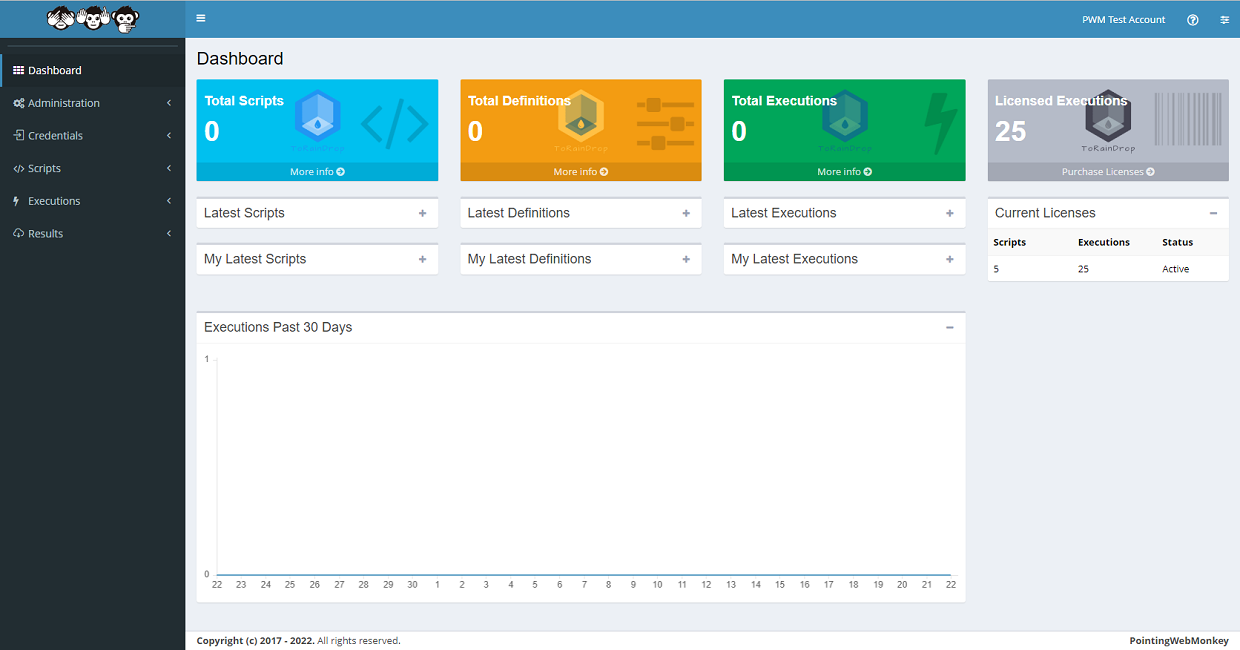
Clicking either of the three options available, will take you to each corresponding "Credentials" section
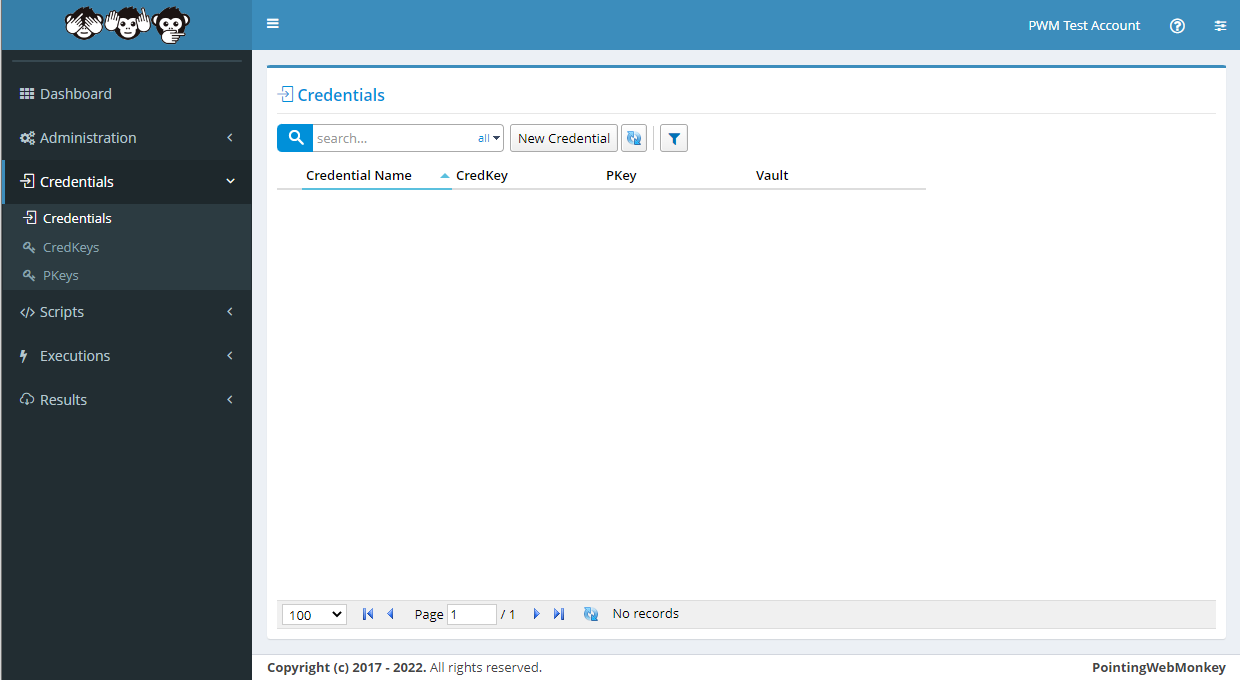
(if you have no Credentials, we suggest starting by creating either a "CredKey" or "Pkey")
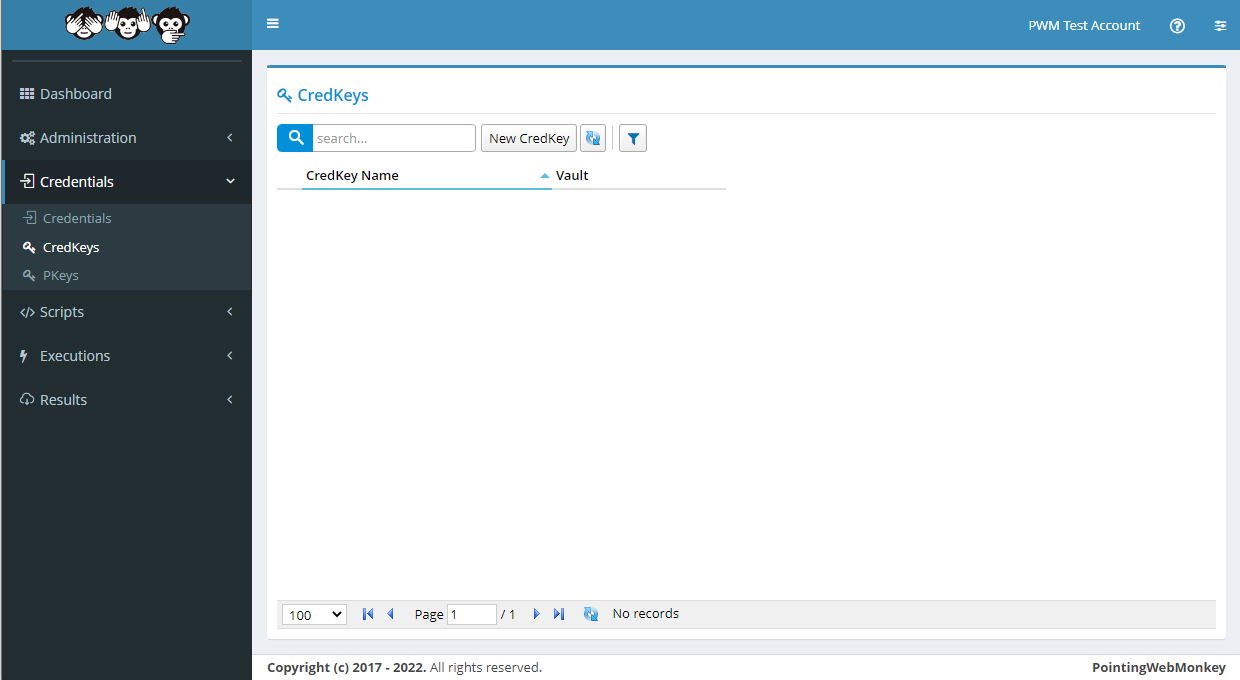
CredKeys - Adding a new CredKeyTo make a new CredKey click on the "New CredKey" button
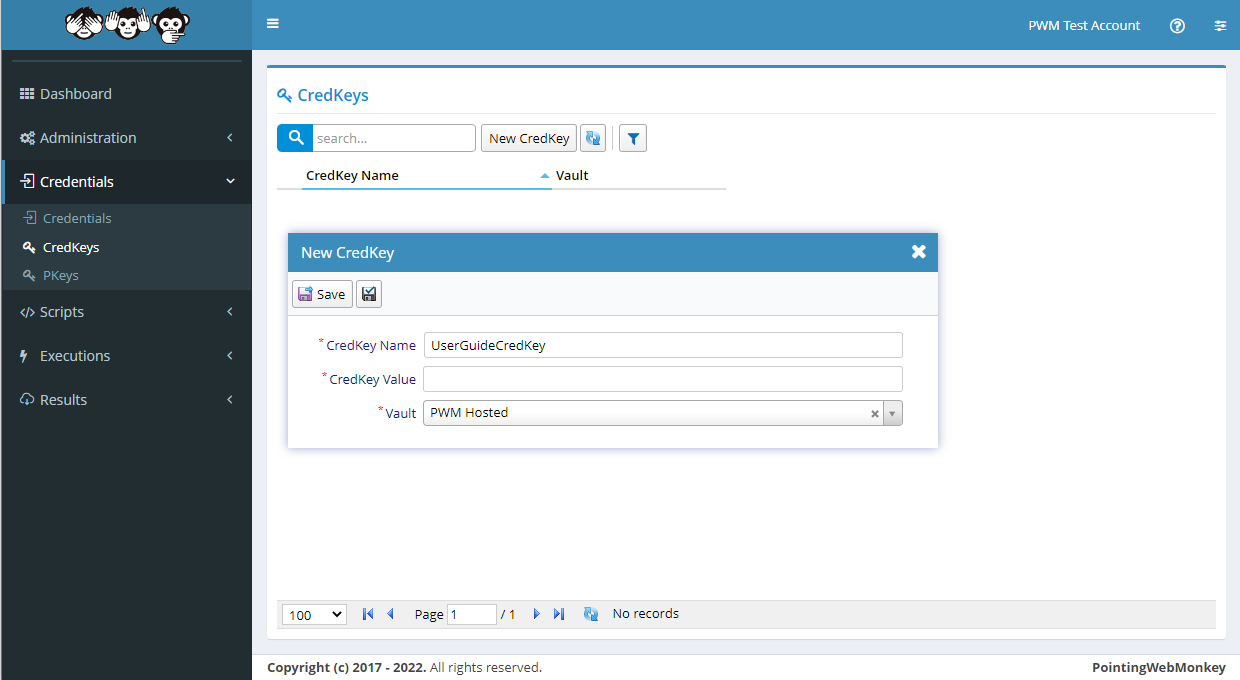
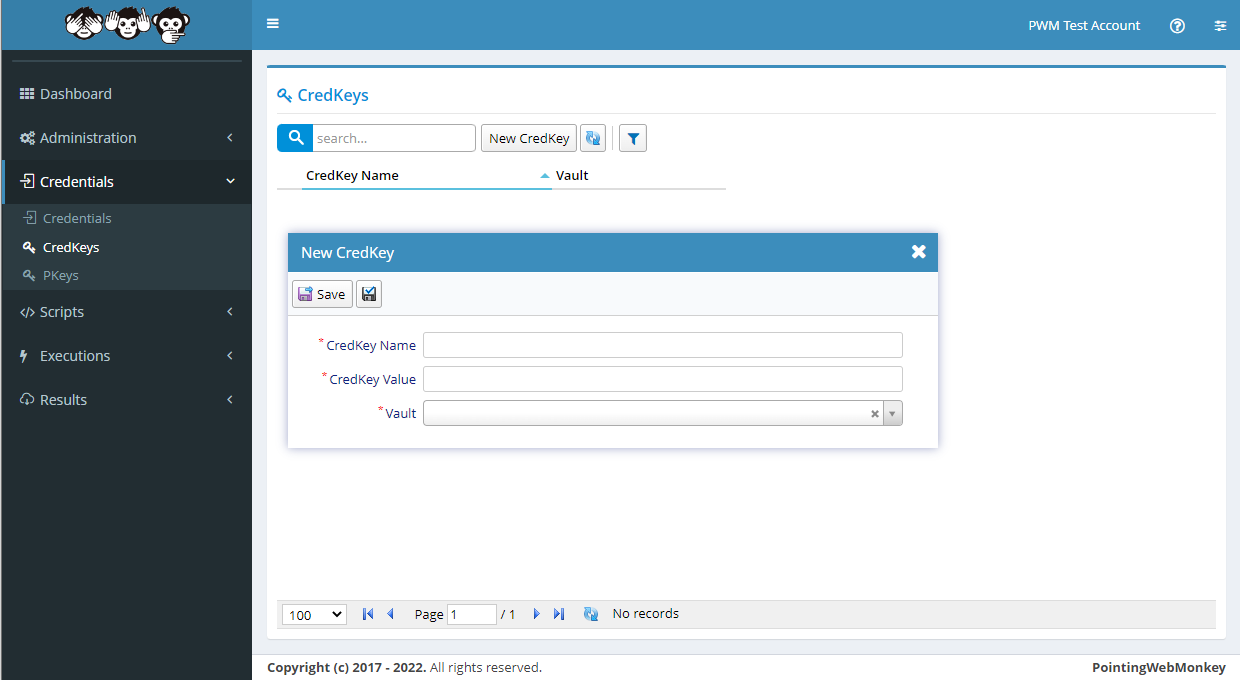
After clicking the "New CredKey" button, the "New CredKey" window will appear with
a textbox for a "CredKey Name"
a textbox for a "CredKey Value"
a drop-down for a "Vault" (this is the Azure Key Vault where the CredKey will be stored)
In the "CredKey Name" textbox enter a 'Name for the CredKey' that is easy to recognize, but is also
easy to distinguish from other "CredKeys"In this example we entered "UserGuideCredKey" as the 'Name for the CredKey'
and selected "PWM Hosted" as the 'Vault' to store the CredKey
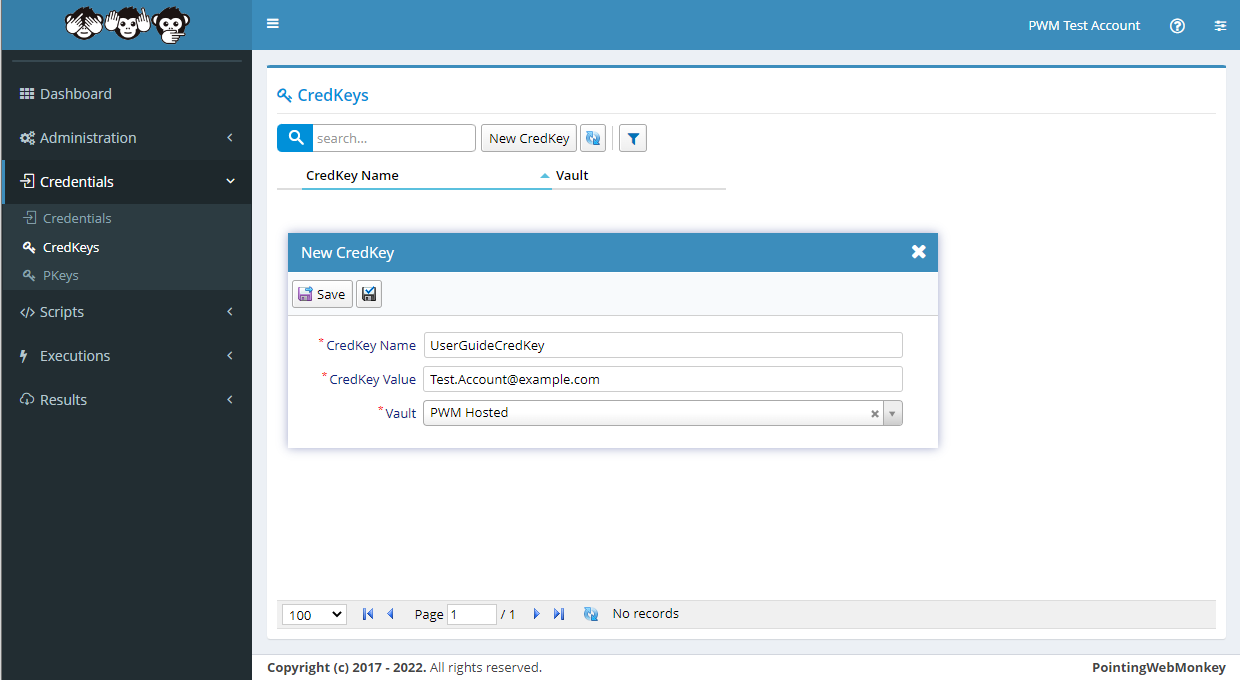
In the "CredKey Value" textbox enter a 'Value for the CredKey'
This can be a username, email address or any other identity type valueIn this example we entered "Test.Account@example.com"
Once each of the fields have been filled, click the "Save" button
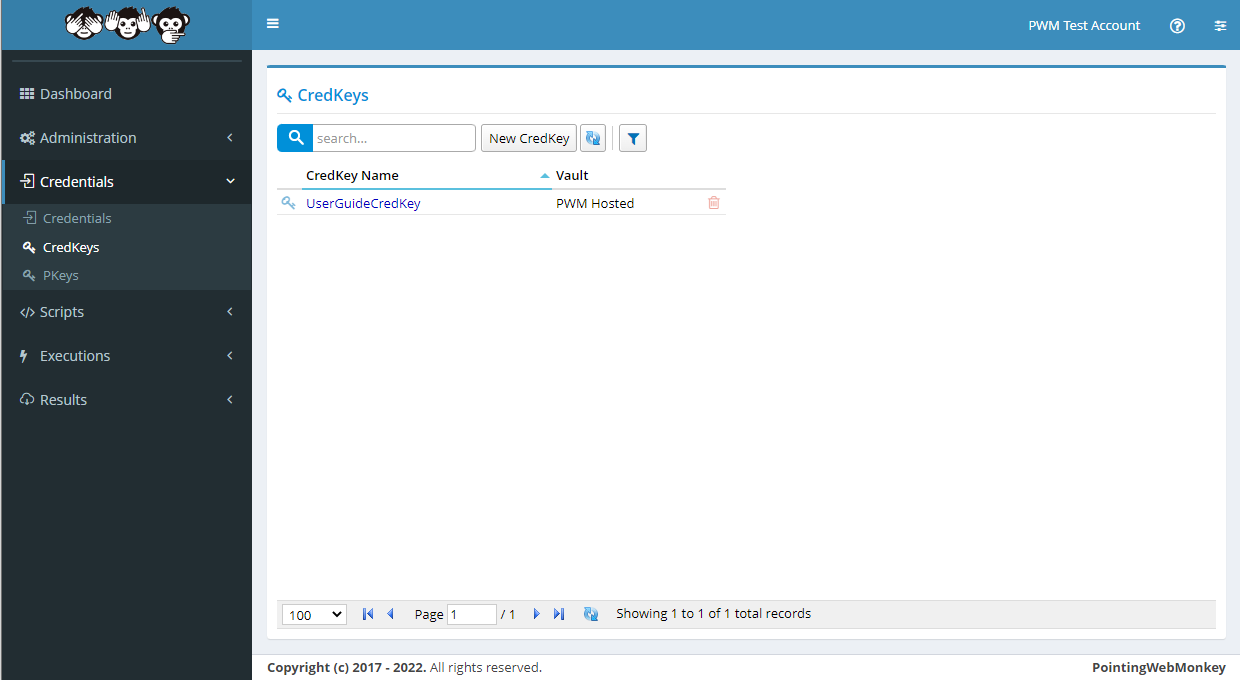
Once saved it will appear in the "CredKeys" list under the "CredKey Name" entered
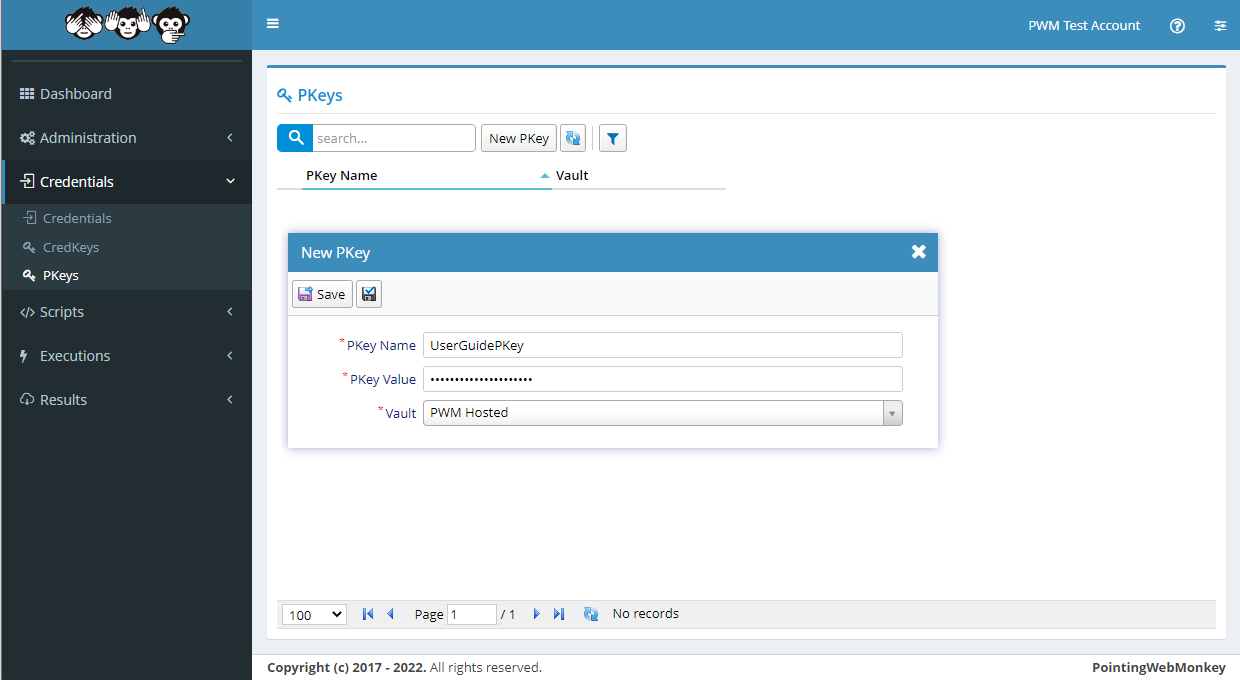
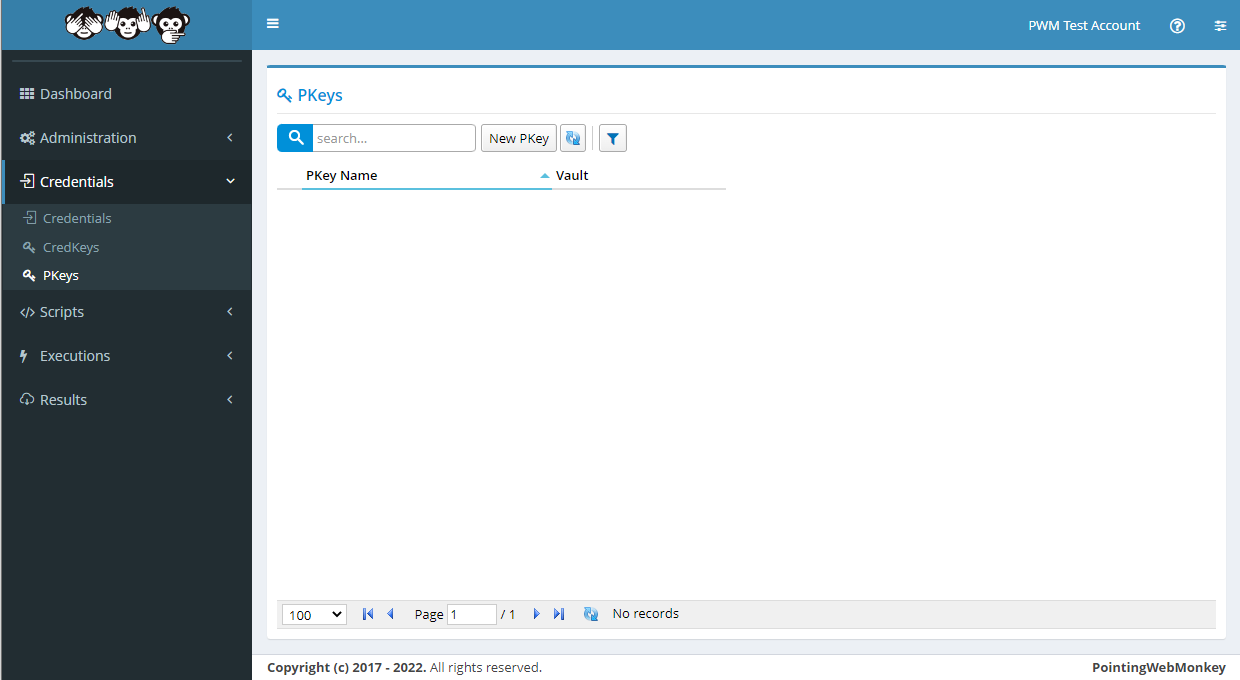
PKeys - Adding a new PkeyTo make a new PKey click on the "New PKey" button
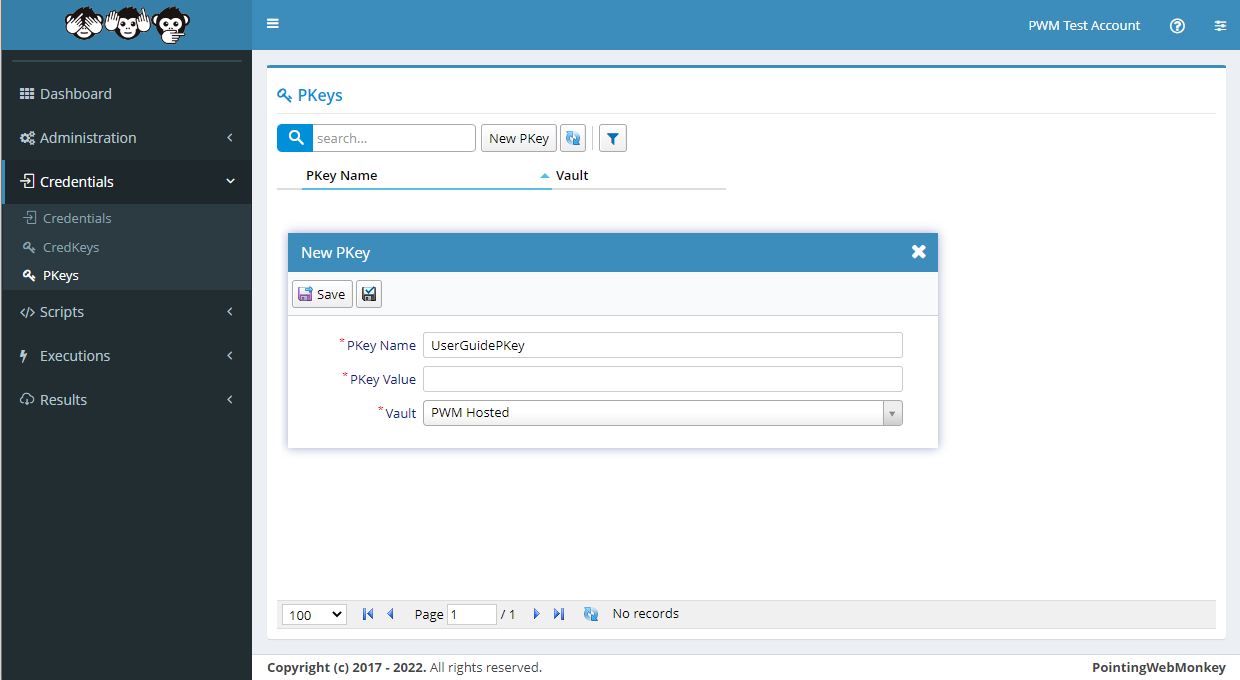
After clicking the "New PKey" button, the "New PKey" window will appear with
a textbox for a "PKey Name"
a textbox for a "PKey Value"
a drop-down for a "Vault" (this is the Azure Key Vault where the PKey will be stored)
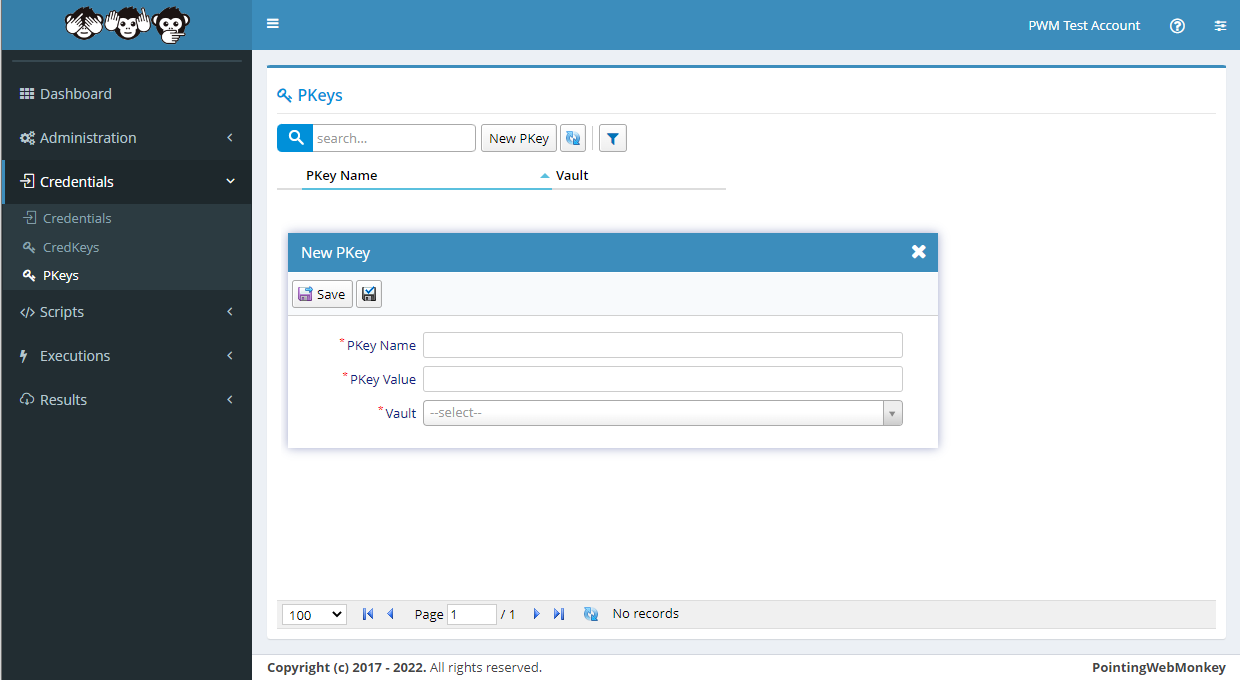
In the "PKey Name" textbox enter a 'Name for the PKey' that is easy to recognize, but is also
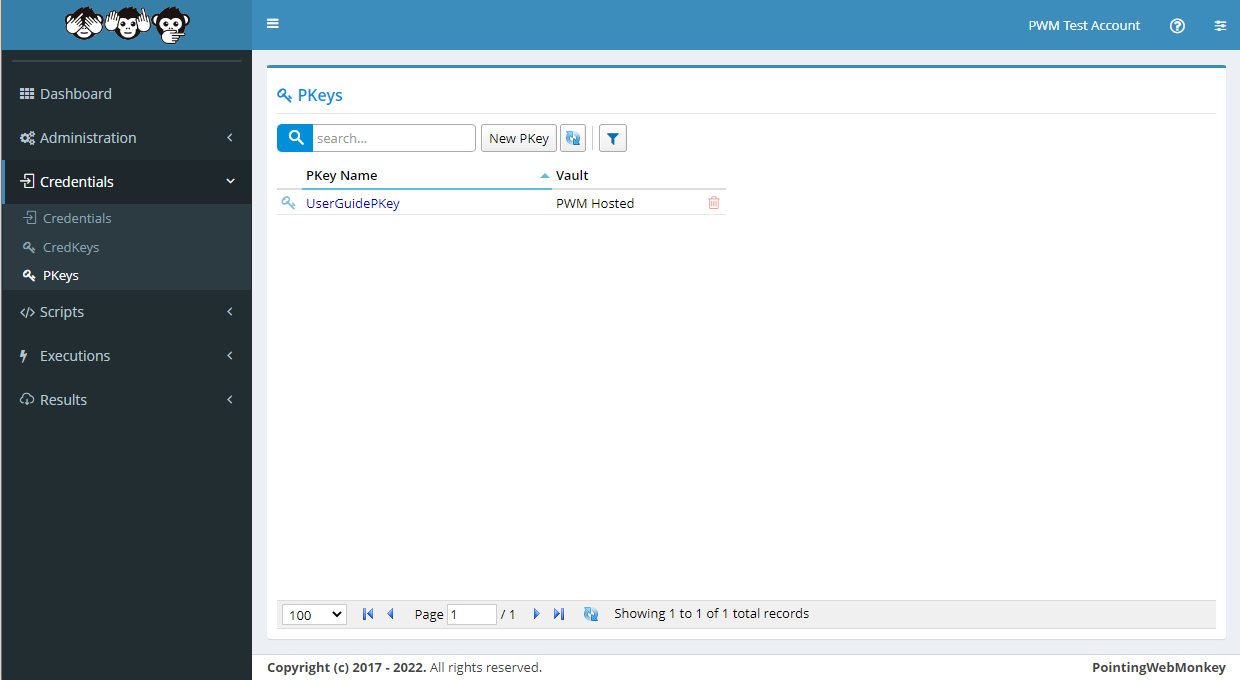
easy to distinguish from other "PKeys"In this example we entered "UserGuidePKey" as the 'Name for the PKey'
and selected "PWM Hosted" as the 'Vault' to store the PKey
In the "PKey Value" textbox enter a 'Password Value for the PKey'
In this example we entered "MySuperSecretPassword!123"
Once each of the fields have been filled, click the "Save" button
Once saved it will appear in the "PKeys" list under the "PKey Name" entered
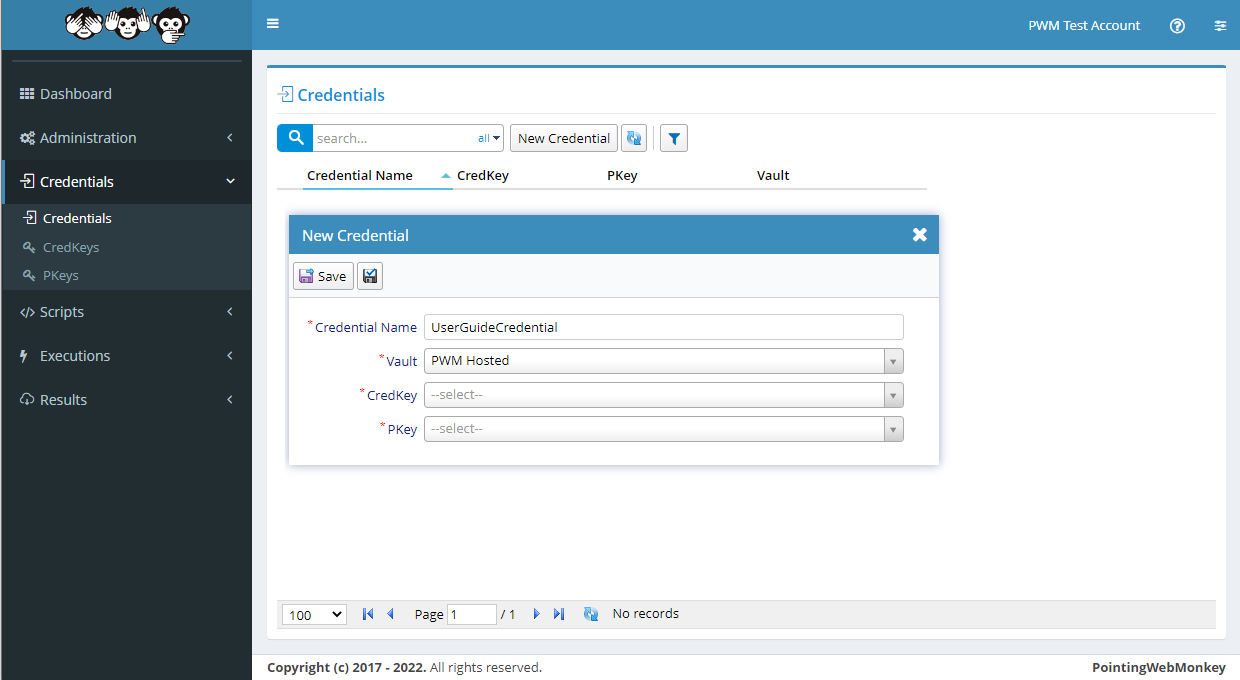
Credentials - Adding a new CredentialTo make a new Credential click on the "New Credentials" button
After clicking the "New Credential" button, the "New Credential" window will appear with
a textbox for a "Credential Name"
a drop-down for a "Vault"
a drop-down for a "CredKey"
a drop-down for a "PKey"
(the combination of these make a "New Credential")
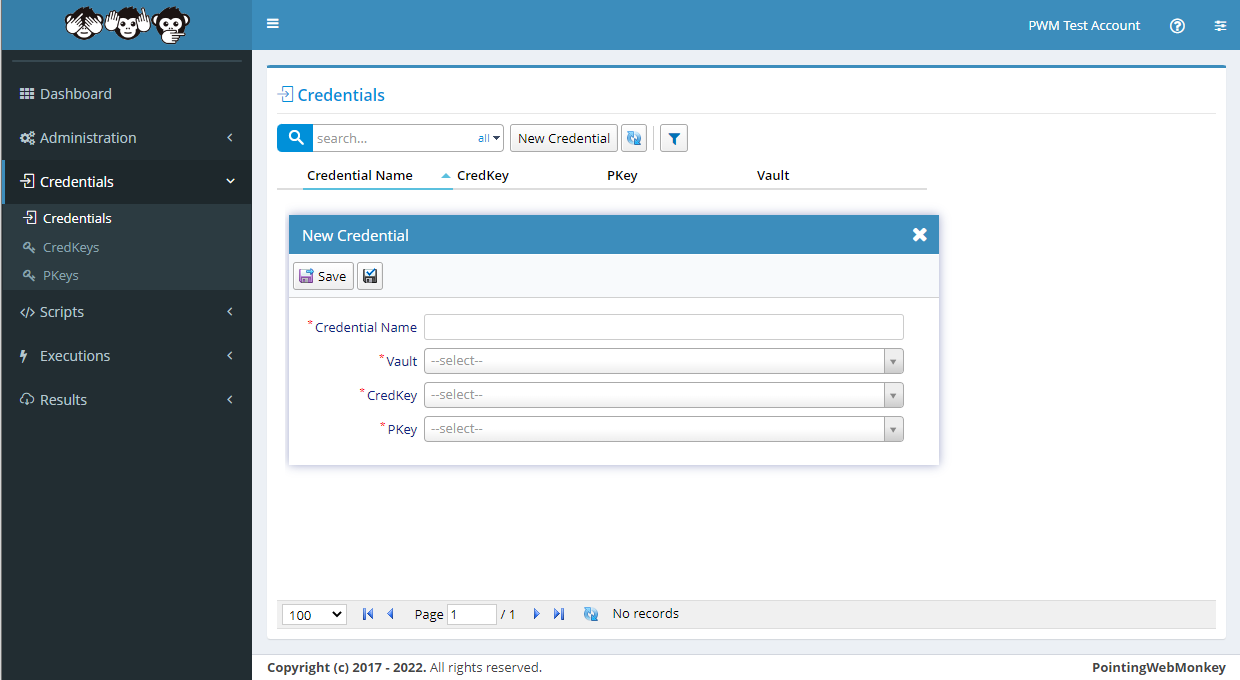
In the "Credential Name" textbox enter a 'Name for the Credential' that is easy to recognize, but is also
easy to distinguish from other "Credentials"In this example we entered "UserGuideCredential"
and selected "PWM Hosted" as the 'Vault'
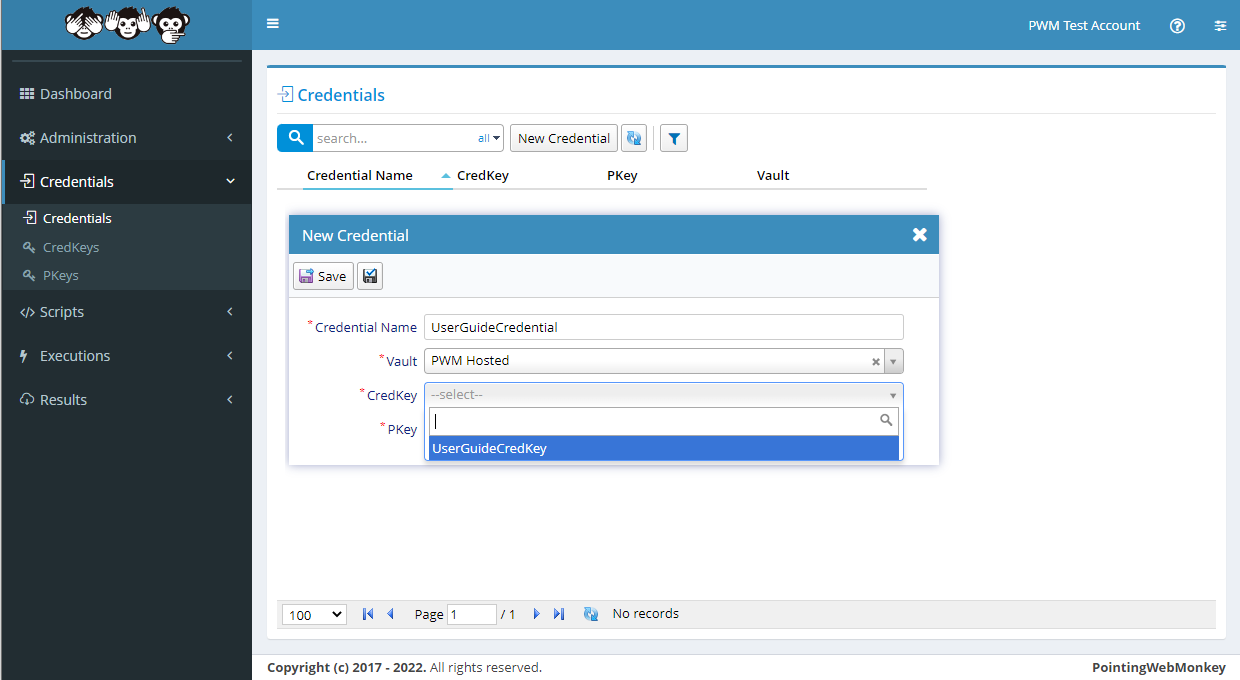
Select a CredKey from the list available in the drop-down menu
In this example we selected "UserGuideCredKey"
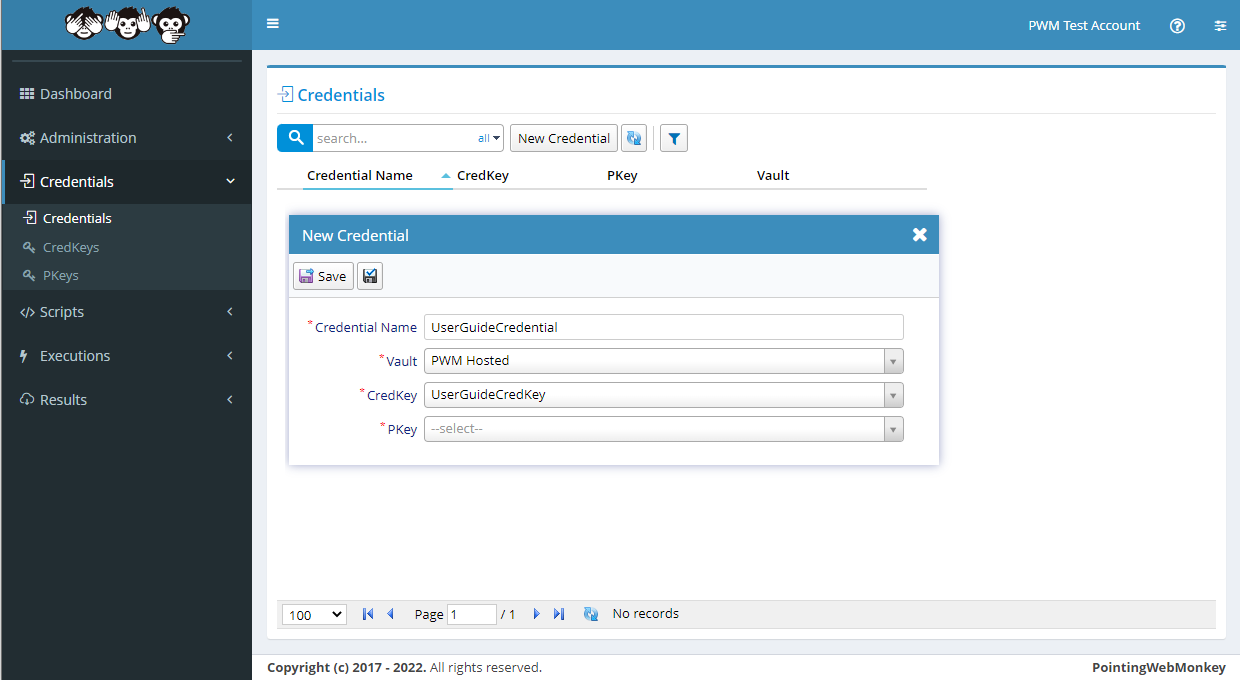
Select a PKey from the list available in the drop-down menu
In this example we selected "UserGuidePKey"
Once each of the fields have been filled, click the "Save" button
Once saved it will appear in the "Credentials" list under the "Credential Name" entered