
So far each example has used a "PowerShell Script" without using any 'Parameters'
(ie. the script always performs the same task everytime it is executed)As we saw in our Executions Guide, each 'Execution' can also be passed 'Parameters' which can be retrieved and included in a "ToRainDrop Script"
This step by step guide will show how to create a "ToRainDrop Script" that accepts 'Parameters'
and an associated "Execution Definition". Then use these to submit a new "Execution" with 'Parameter Values'
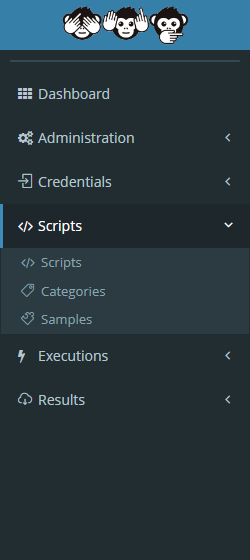
From the navigation menu on the left, click on "Scripts", giving a drop down of three options
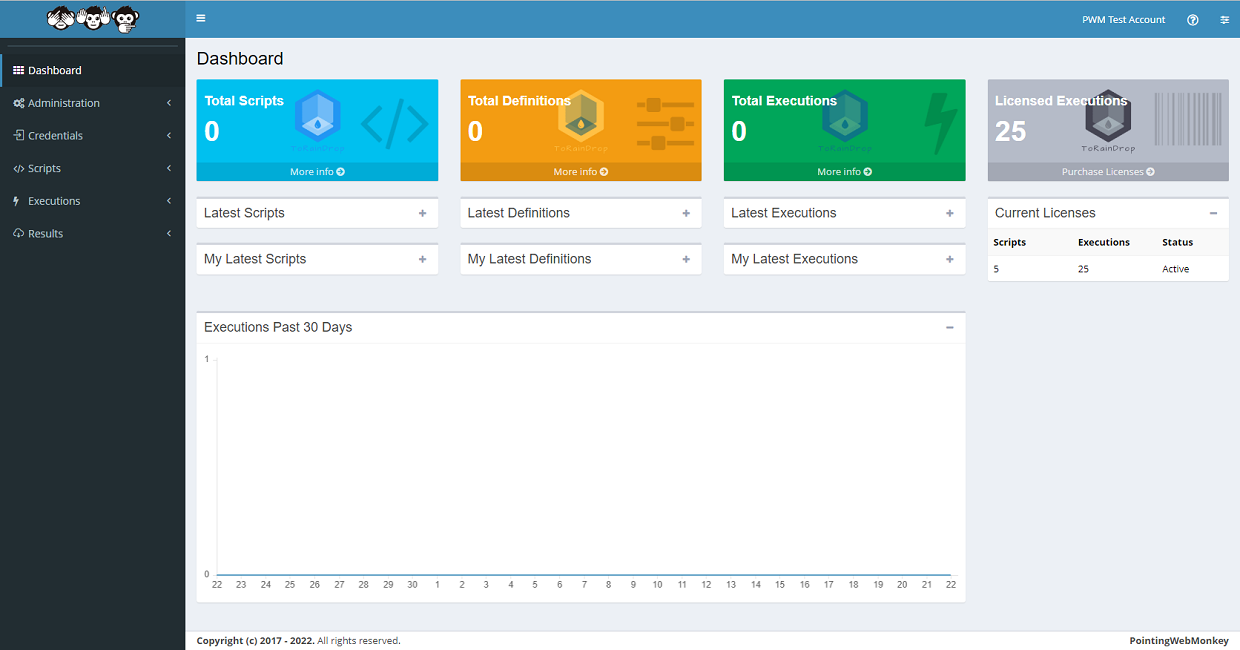
Clicking either of the three options available, will take you to each corresponding "Scripts" section
Sample Scripts - Using Sample Scripts to create a new Parameter ScriptTo make a new Script click on a "Sample Script"
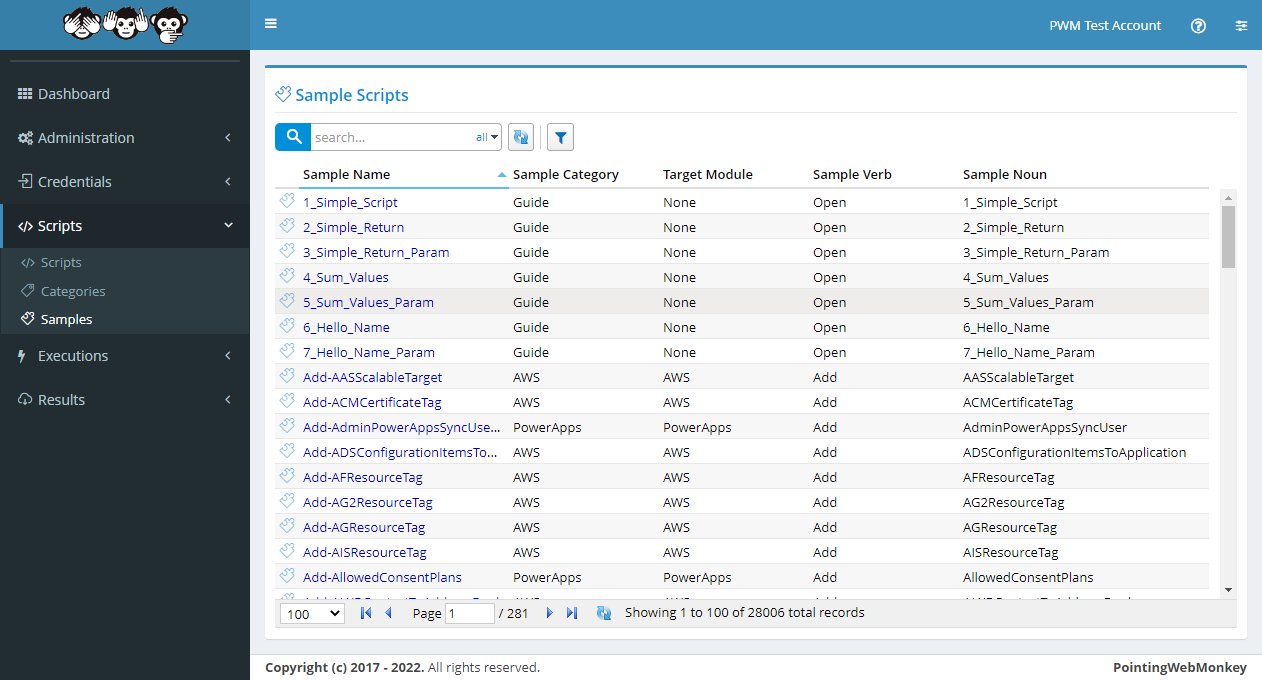
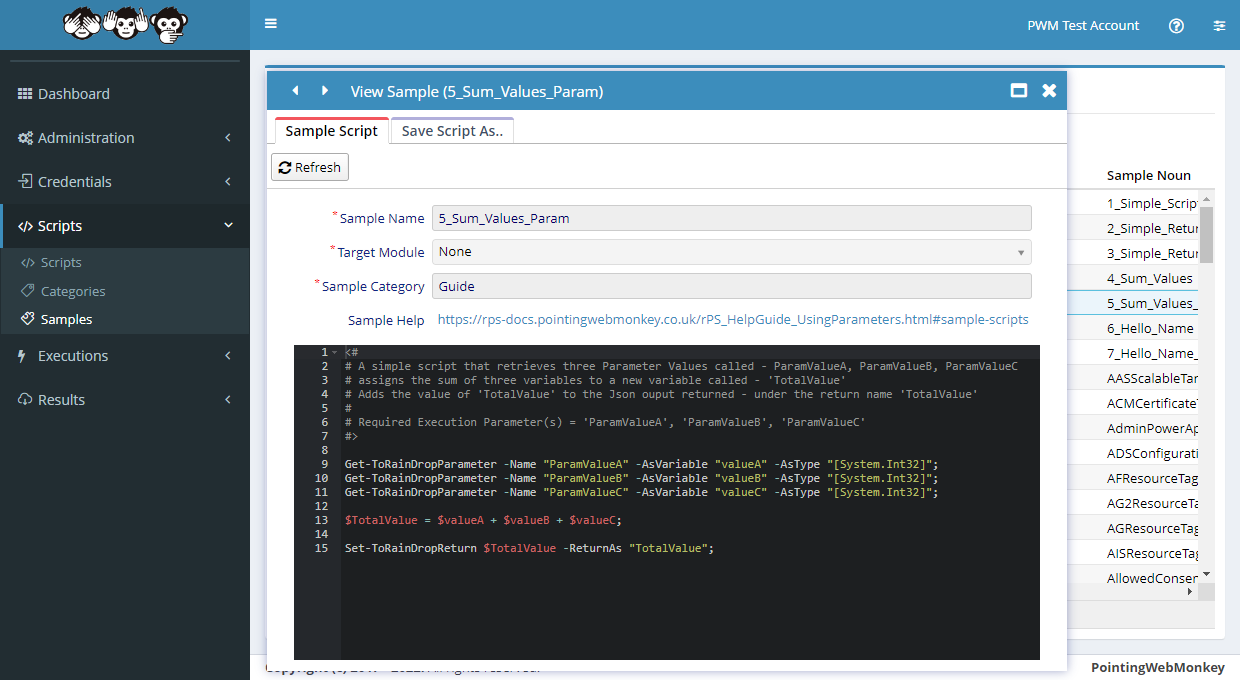
After clicking on a "Sample Script", the "View Sample" window will appear
In this example we selected the "5_Sum_Values_Param" sample
This particular Sample Script attempts to 'add three numbers'' and return the 'Total Value'
The script expects to recieve the three numbers via parameters:
"ParamValueA"
"ParamValueB"
"ParamValueC"
Note use of the Get-ToRainDropParameter -AsType "[System.Int32]" syntax for 'ParamValueA', 'ParamValueB' and 'ParamValueC'
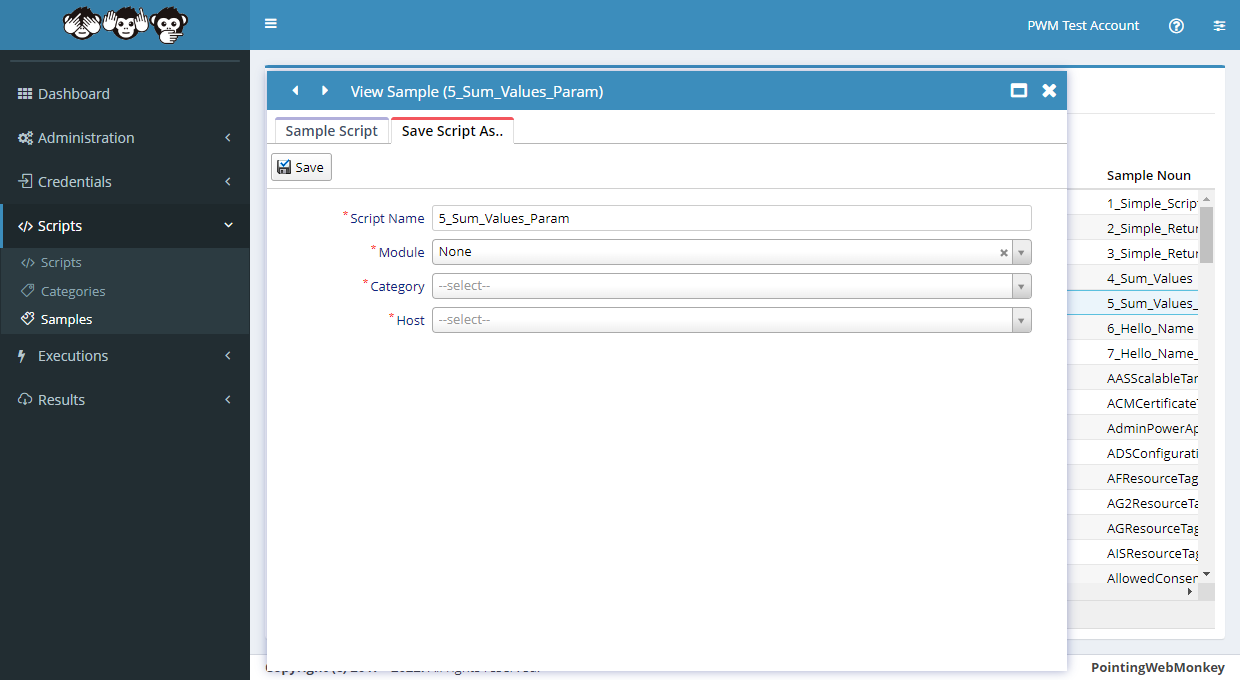
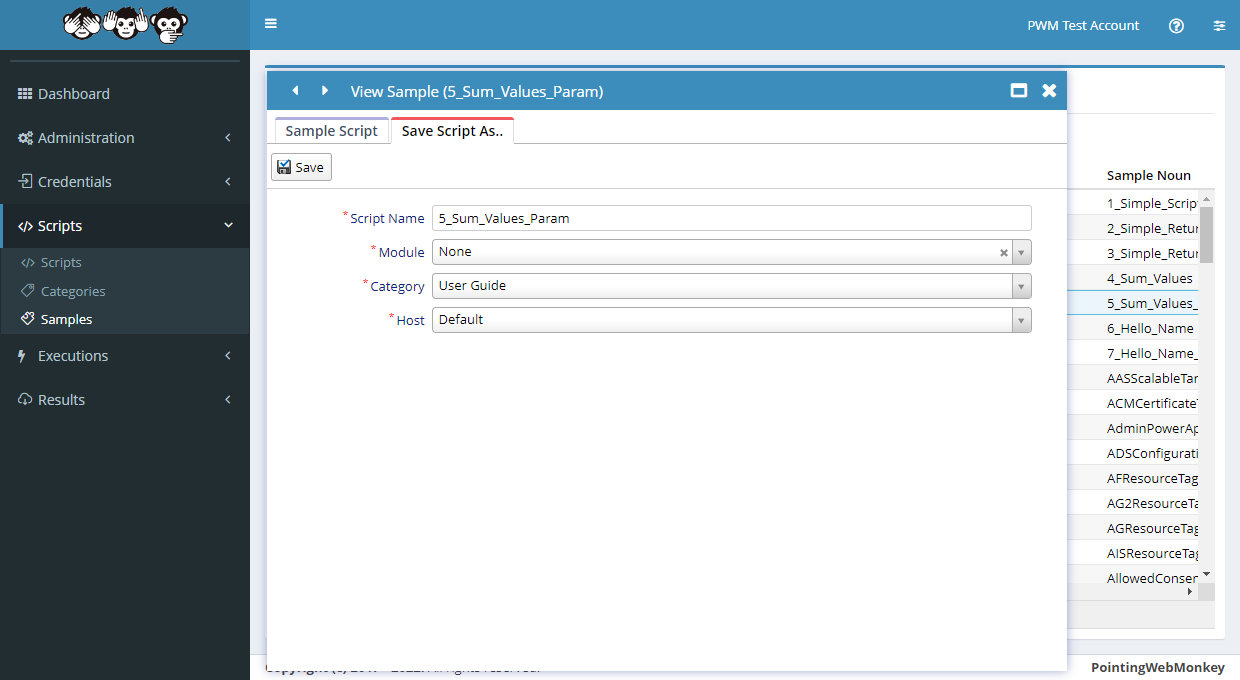
Click on the 'Save Script As' tab
In the "Script Name" textbox enter a 'Name for the Script' that is easy to recognize, but is also
easy to distinguish from other "Scripts"In this example we entered "5_Sum_Values_Param" as the 'Name of the Script'
and selected "None" as the 'Module'
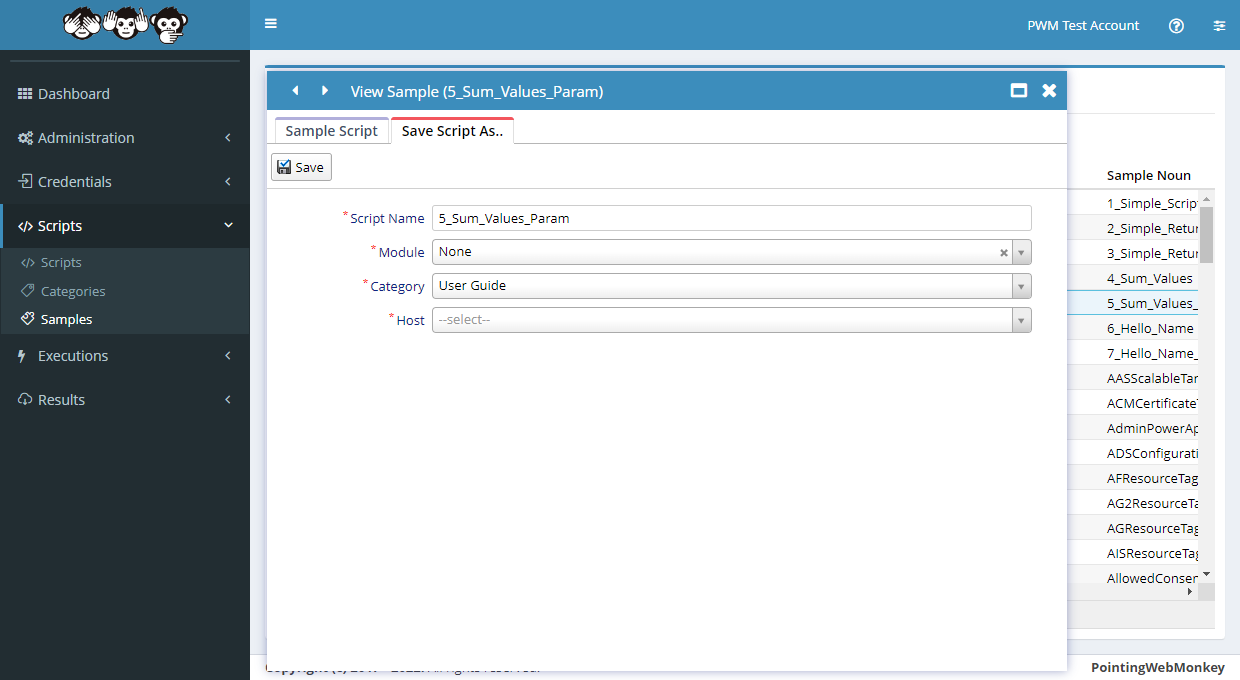
Select a Category from the list available in the drop-down menu
In this example we selected "User Guide"
Select a Host from the list available in the drop-down menu
In this example we selected "Default"
Once all the boxes have been filled click the "Save" button
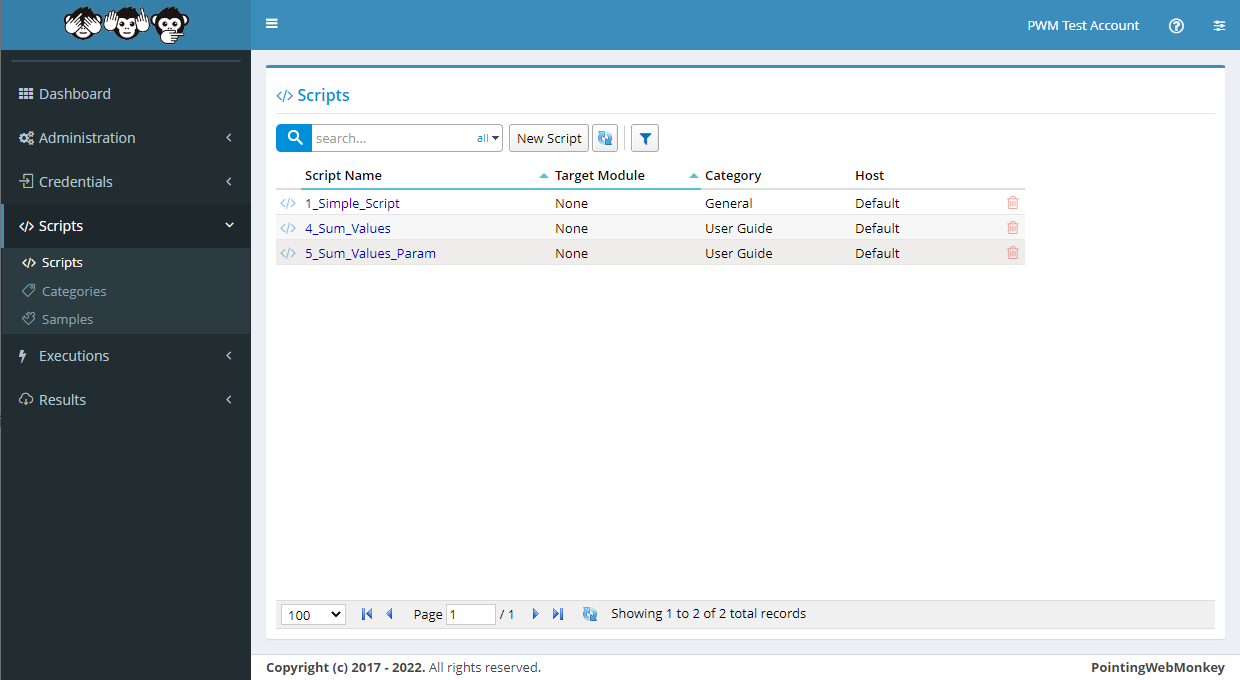
Once saved the newly created script will appear in the "Scripts" list under the "Script Name" entered
(from the 'Scripts' navigation menu on the left)
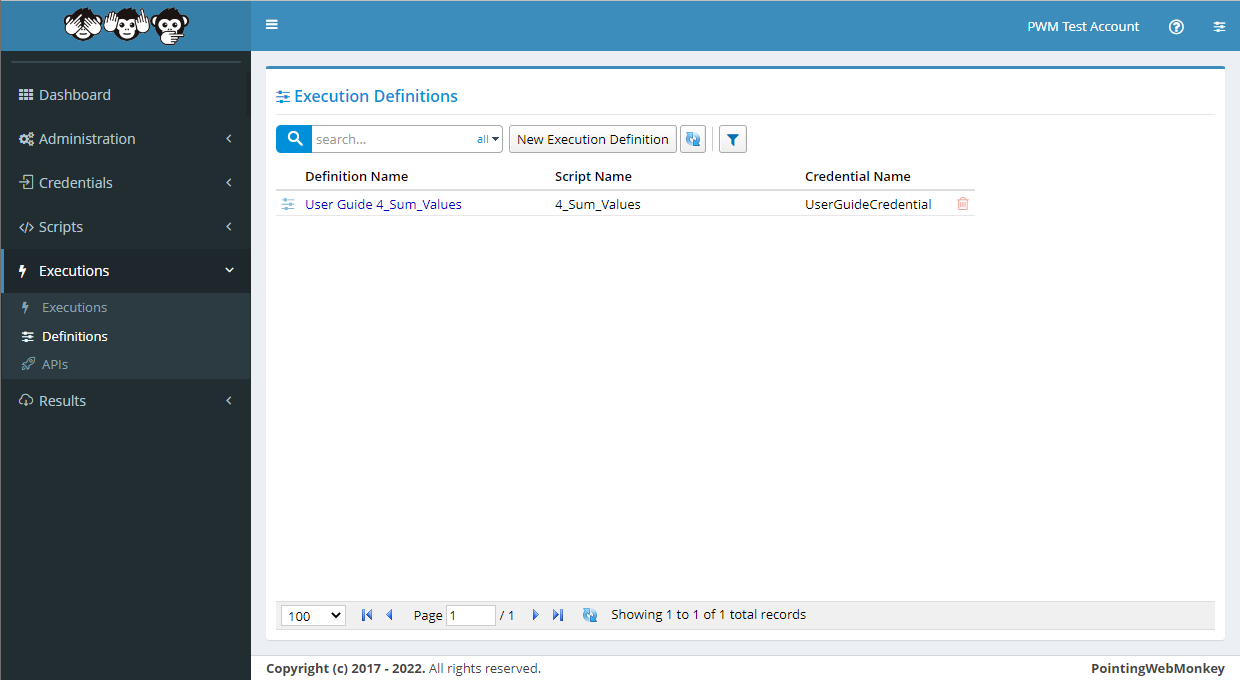
Definitions - Adding a new Execution Definition To make a new Definition click on the "New Execution Definition" button
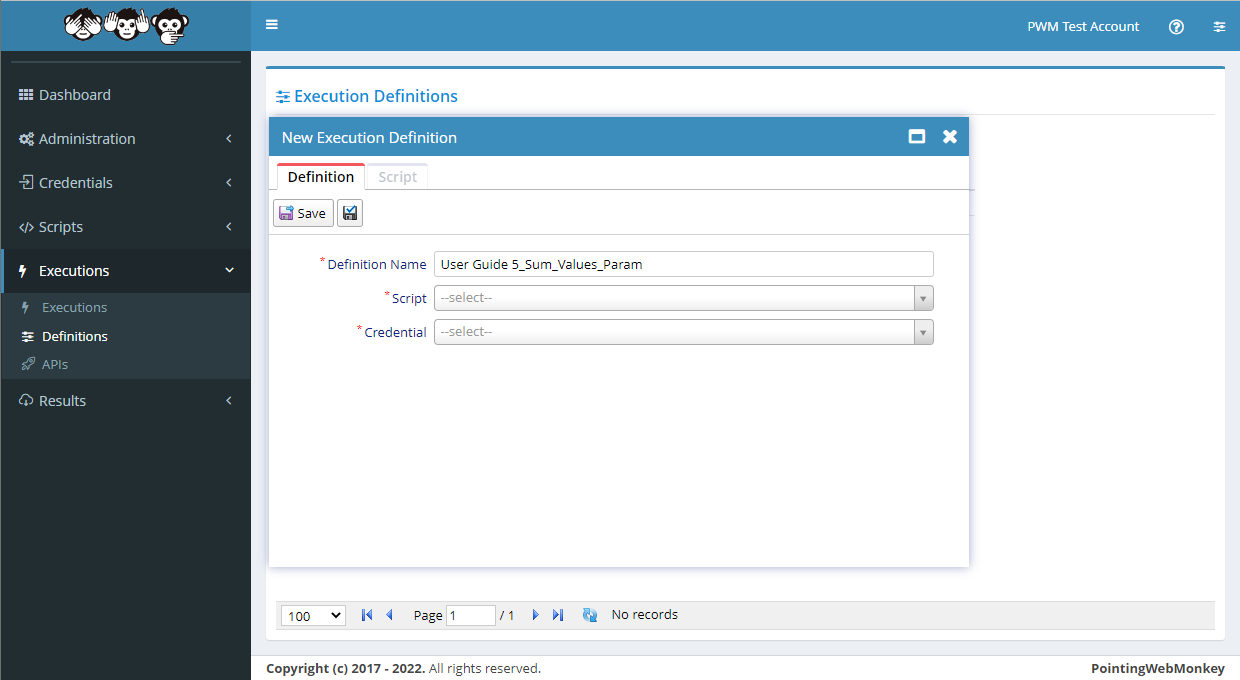
After clicking the button the "New Execution Definition" window will appear with
a textbox for a "Definition Name"
a drop-down for a "Script"
a drop-down for a "Credential"
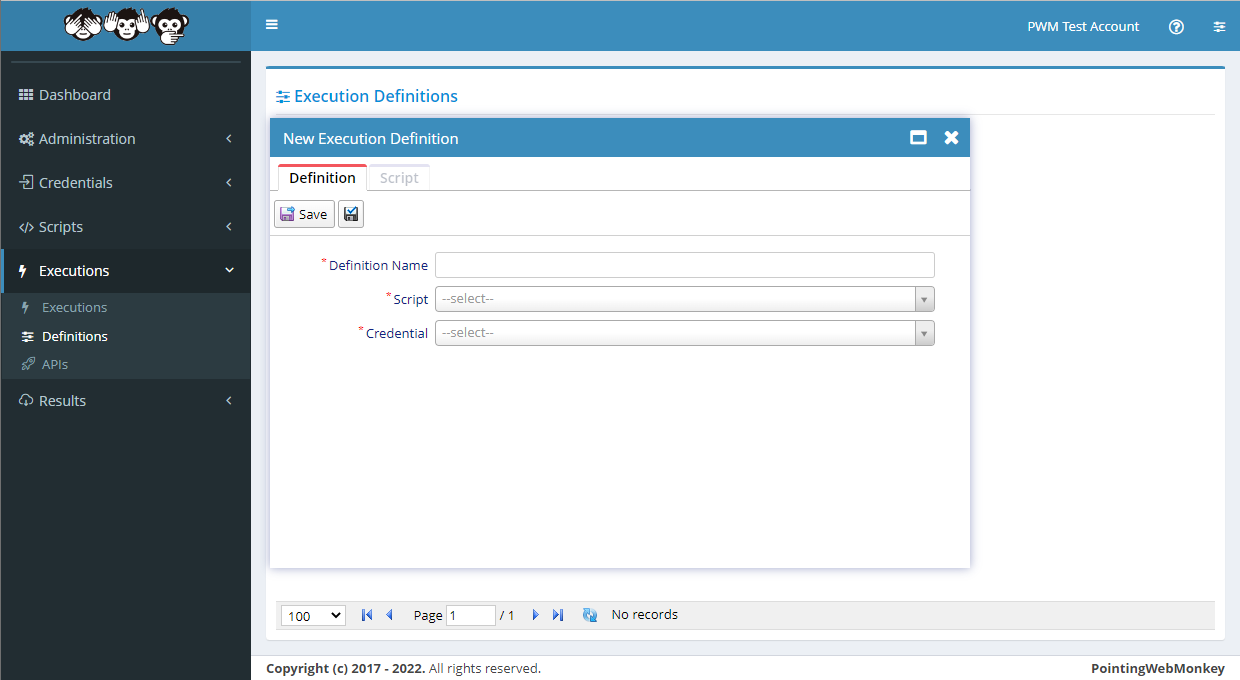
In the "Definition Name" textbox enter a 'Name for the Definition' that is easy to recognize, but is also easy to distinguish from other "Definitions"
In this example we entered "User Guide 5_Sum_Values_Param"
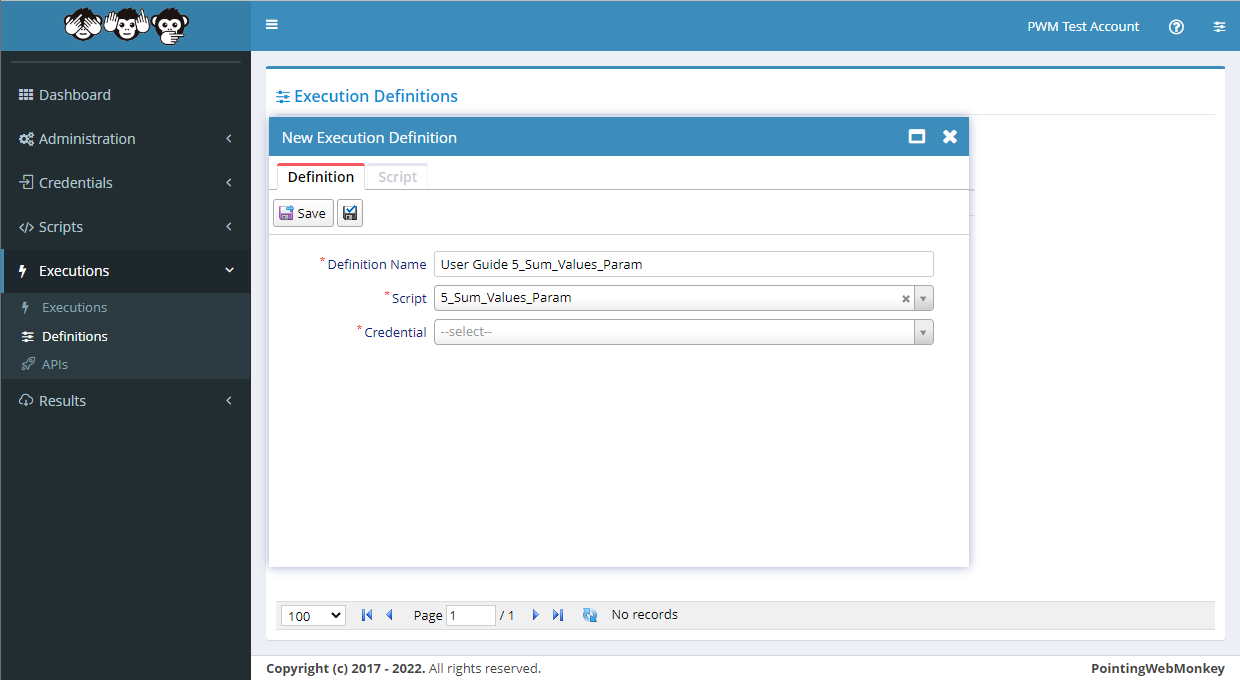
Select a Script from the list available in the drop-down menu
In this example we selected "5_Sum_Values_Param"
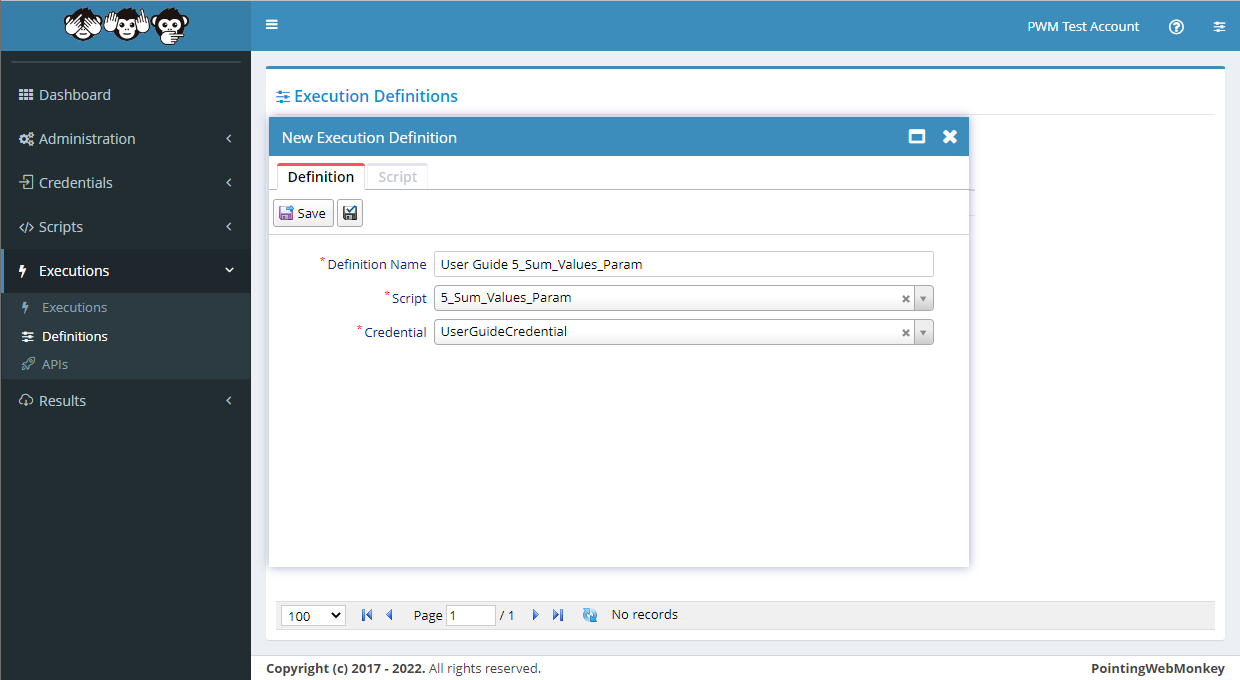
Select a Credential from the list available in the drop-down menu
In this example we selected "UserGuideCredential"
Once each of the fields have been filled, click the "Save" button
Once saved it will appear in the "Definitions" list under the "Definitions Name" entered
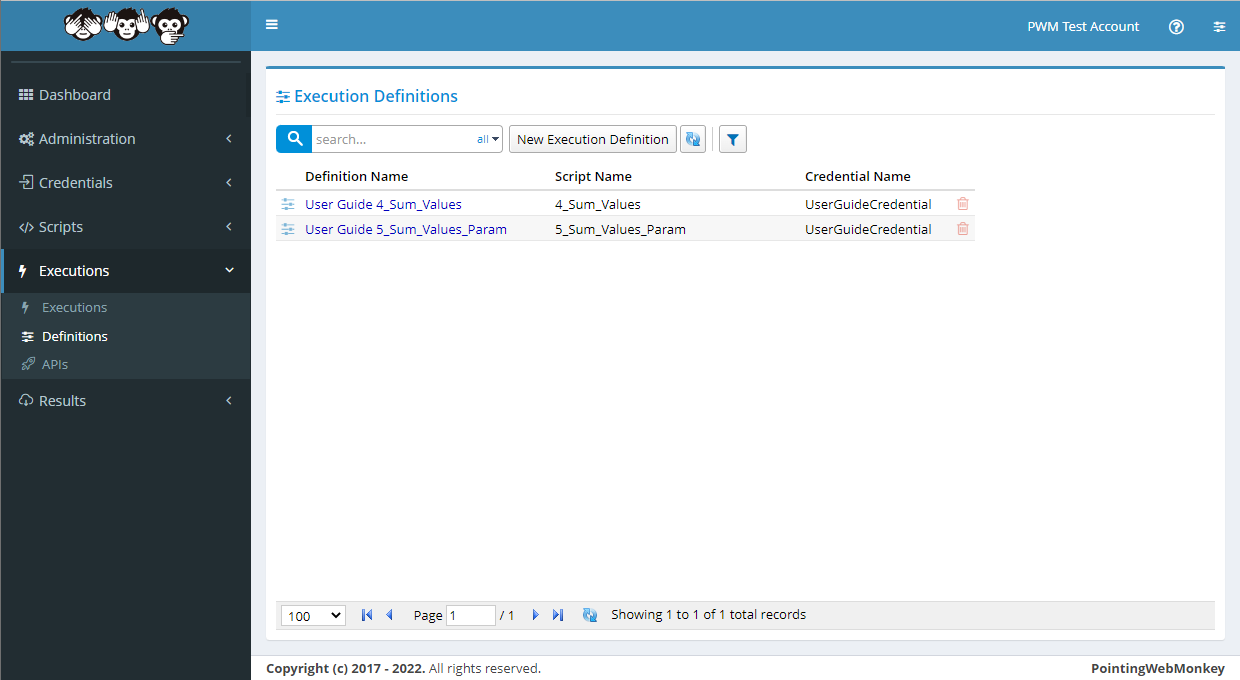
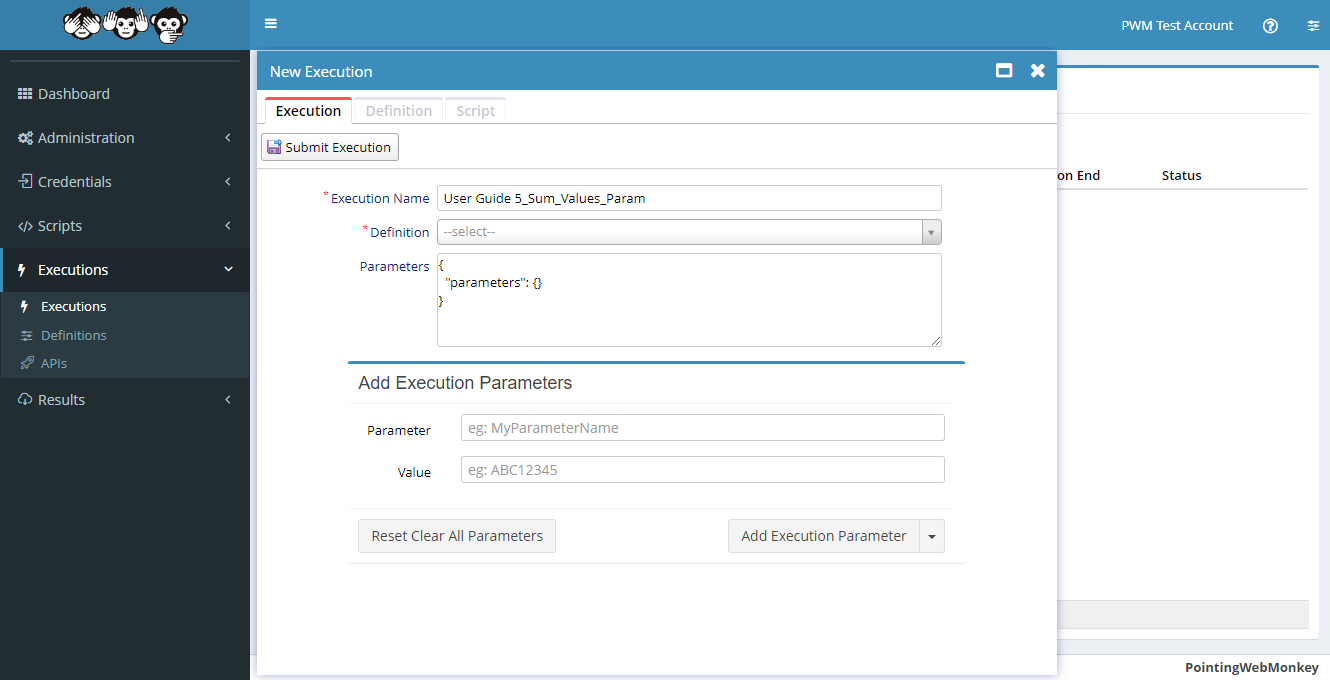
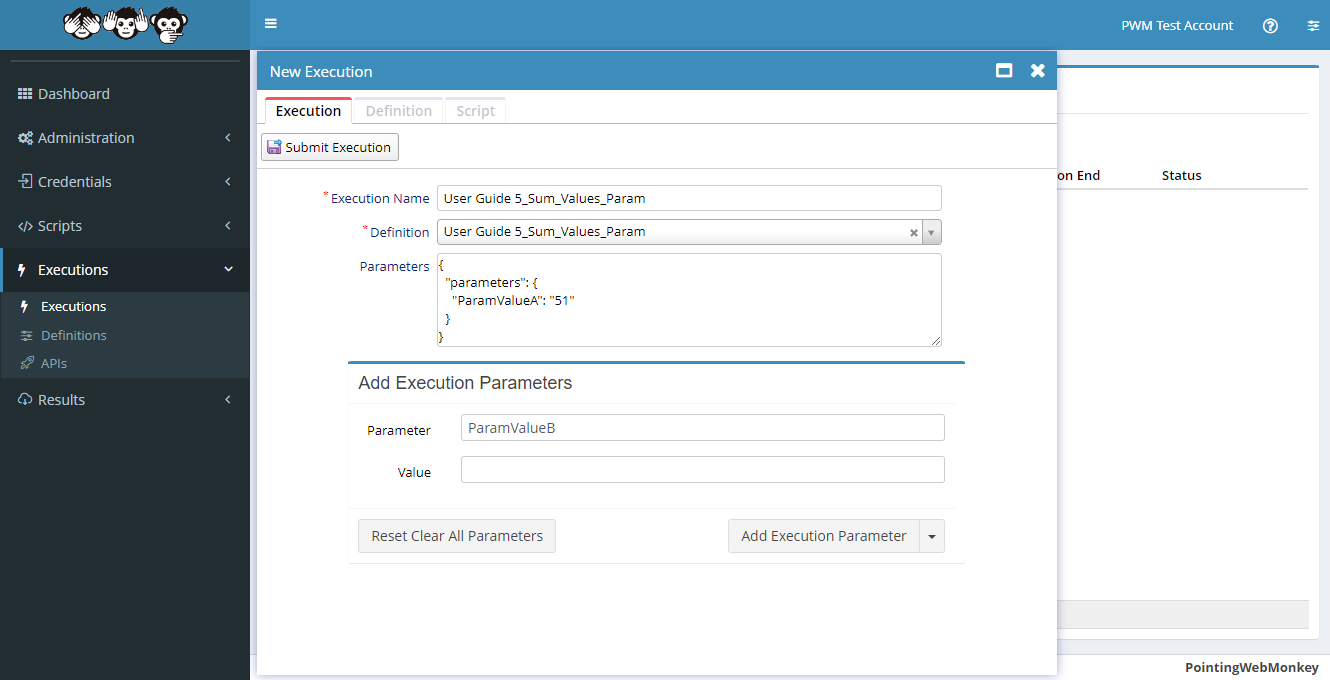
Executions - Submitting a new Parameter ExecutionTo submit a new Execution click on the "New Execution" button
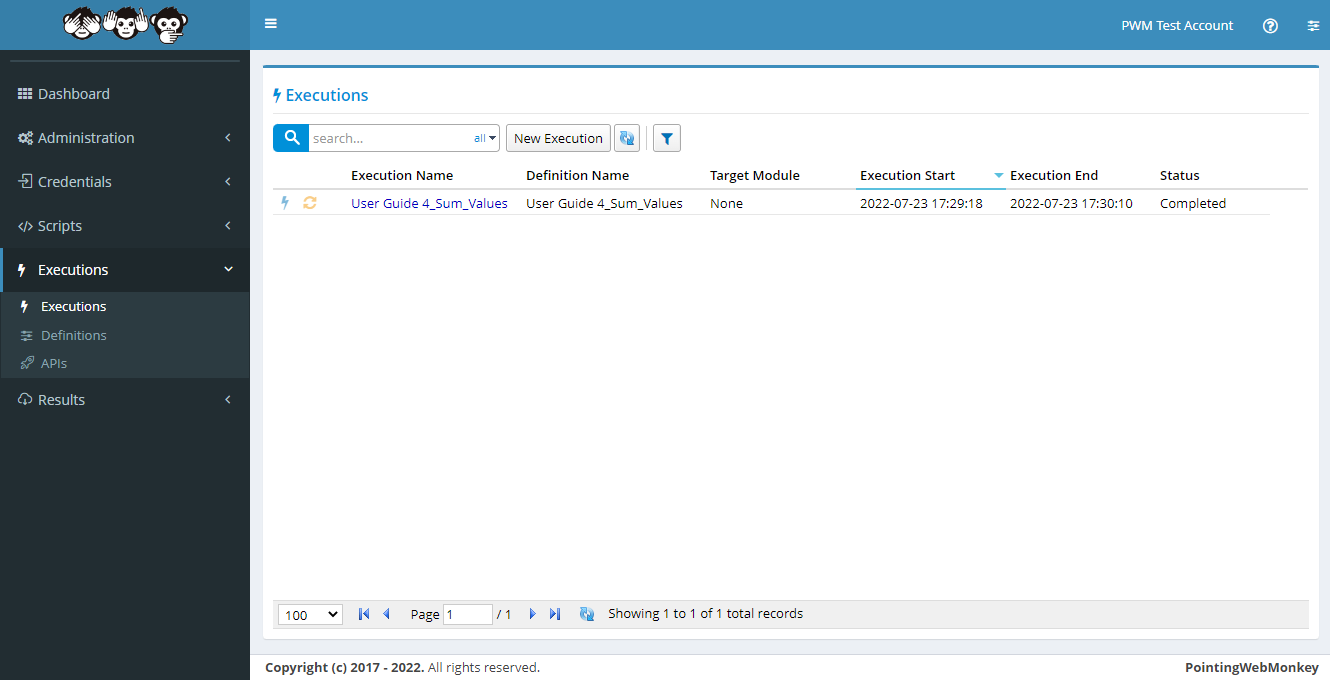
After clicking the "New Execution" button, the "New Execution" window will appear with
a textbox for a "Execution Name"
a drop-down for a "Definition"
a textarea for a "Parameters"
(the combination of these make a "New Execution")
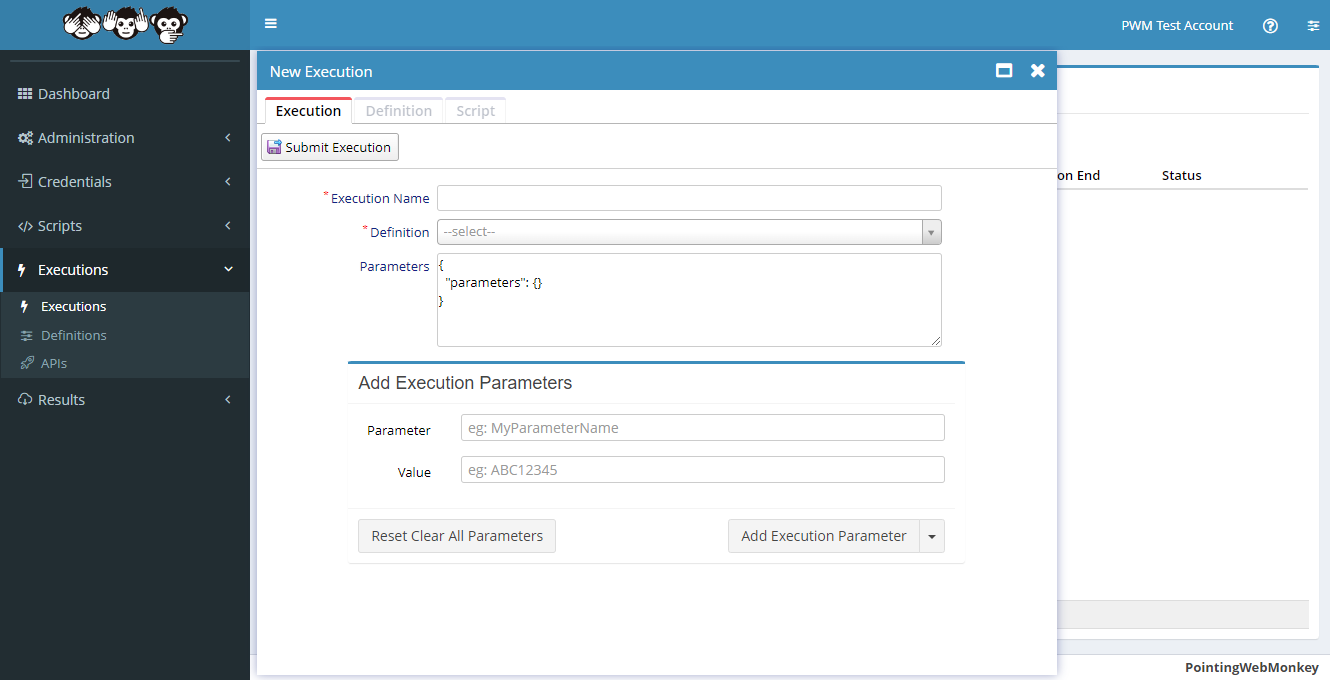
In the "Execution Name" textbox enter a 'Name for the Execution' that is easy to recognize, but is also
easy to distinguish from other "Executions"In this example we entered "User Guide 5_Sum_Values_Param"
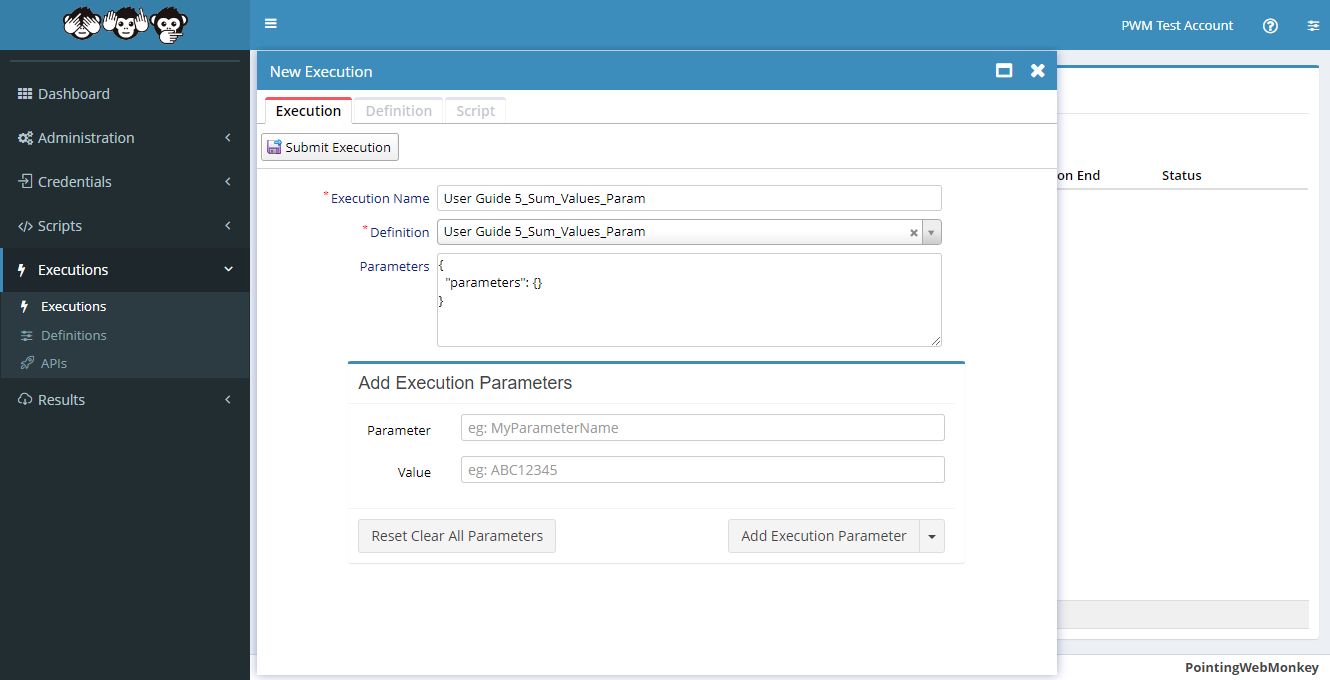
Select a Definition from the list available in the drop-down menu
In this example we selected "User Guide 5_Sum_Values_Param"
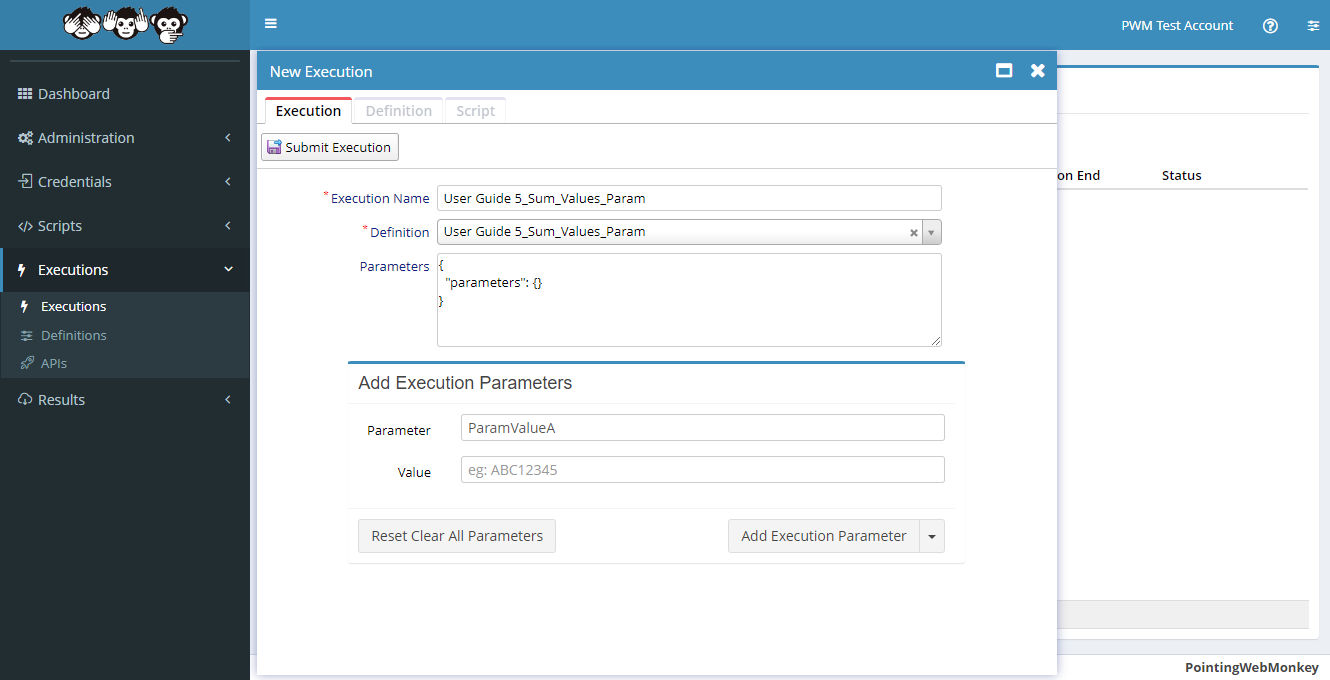
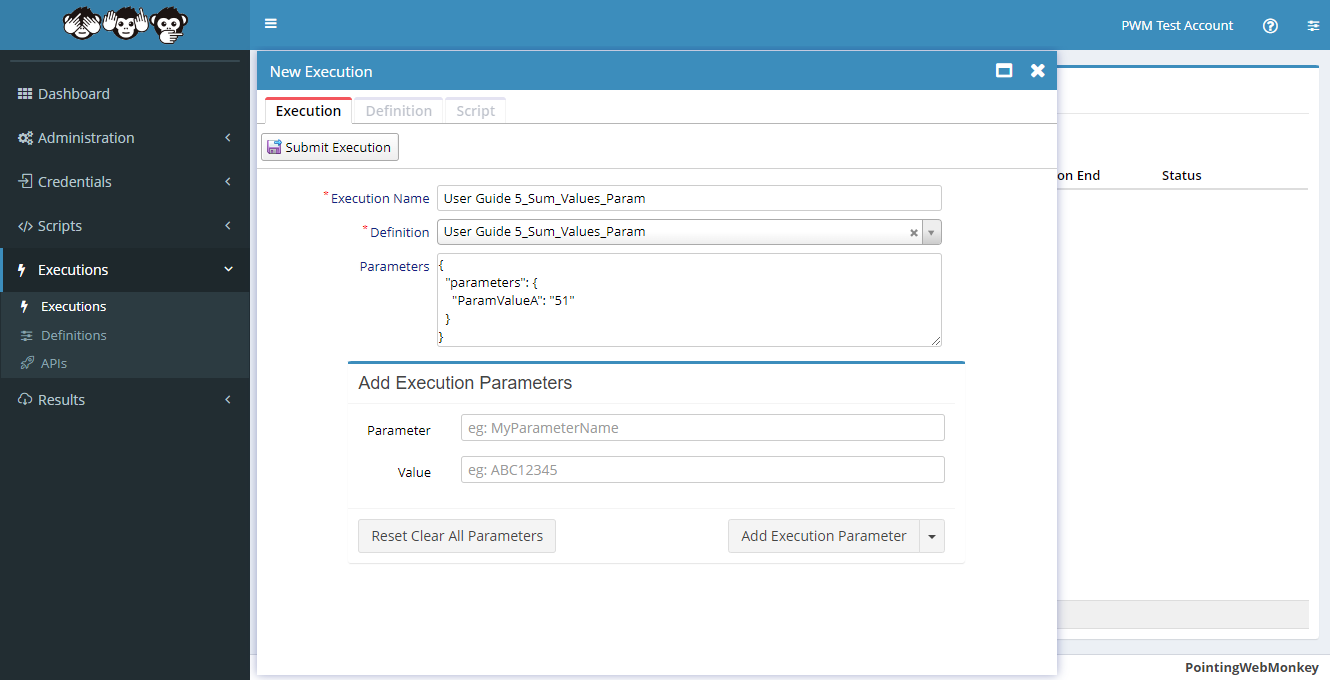
In the "Parameter" textbox under the 'Add Execution Parameters' section, enter a 'Name' for the the first 'Parameter'
In this example we entered "ParamValueA"
(this is the first of the three 'Parameter Names' expected by the Script)
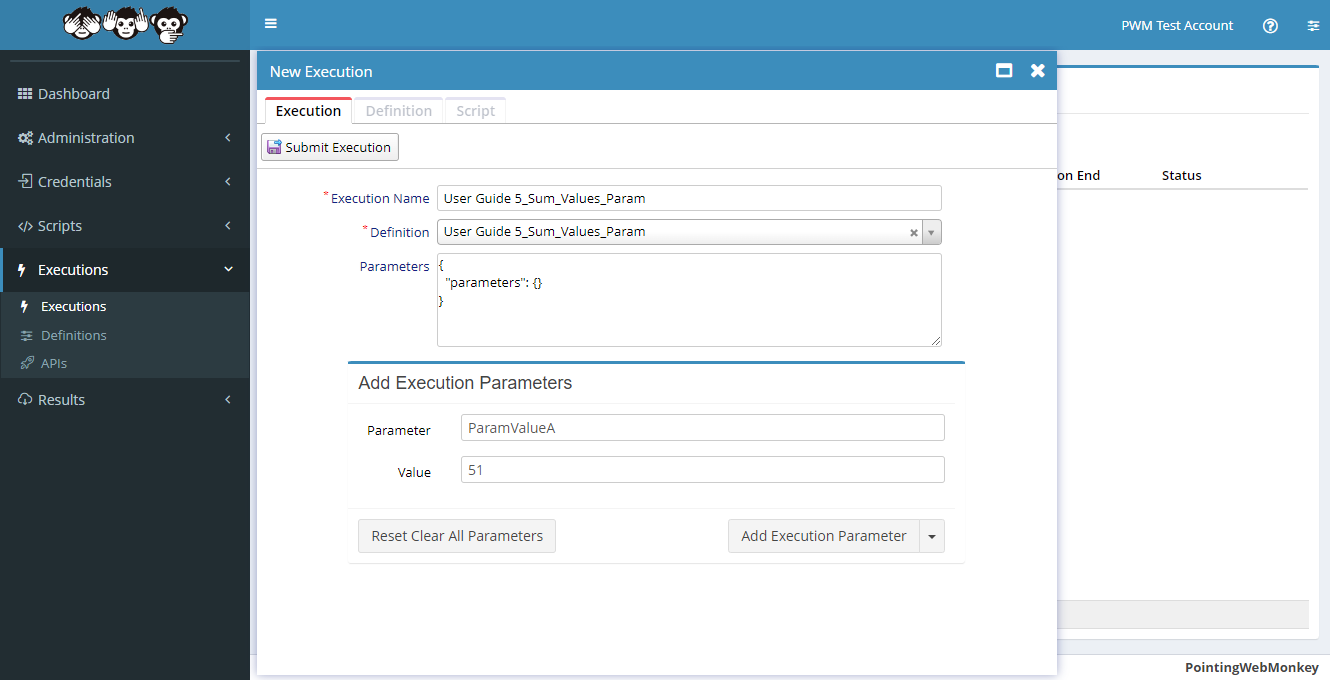
In the "Value" textbox under the 'Add Execution Parameters' section, enter a 'Value' for the the first 'Parameter'
In this example we entered "51"
(this will be the first of the three 'Parameter Values' expected by the Script)
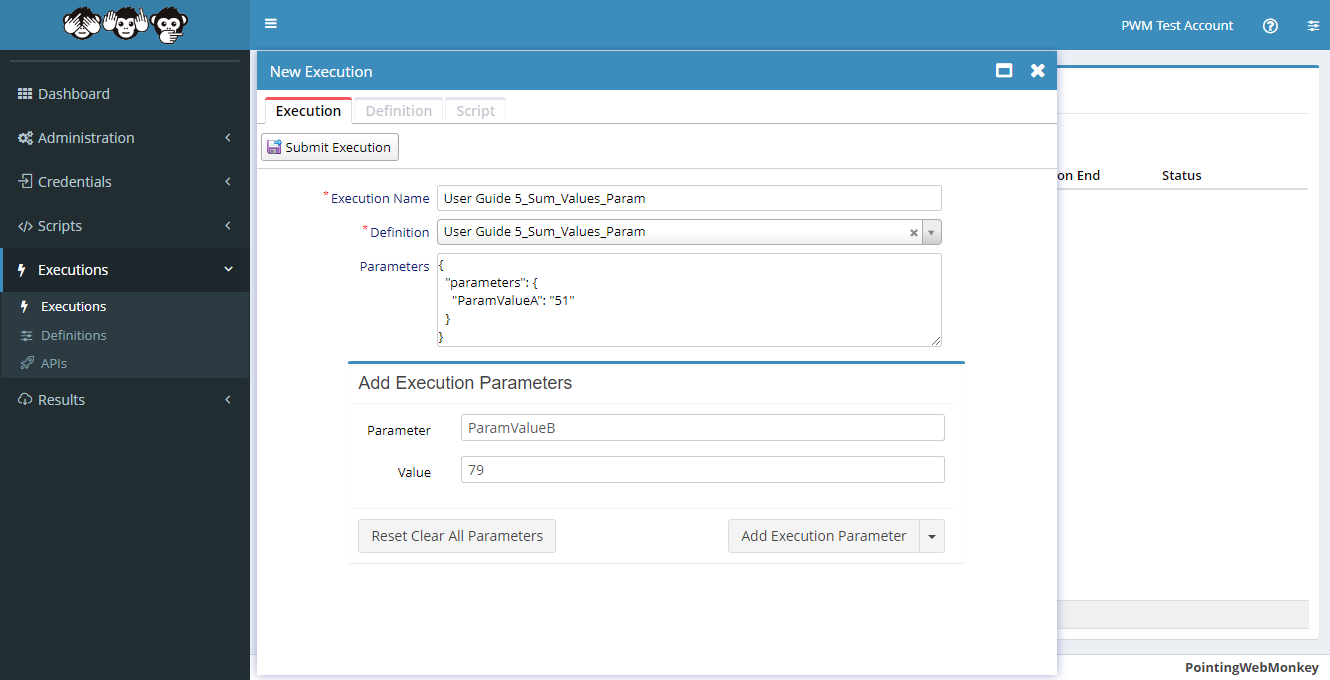
To add the new Execution Parameter click on the "Add Execution Parameter" button
The new 'Parameter Name' and 'Parameter Value' will be added to the 'Parameters' textarea in JSON format
In the "Parameter" textbox under the 'Add Execution Parameters' section, enter a 'Name' for the the second 'Parameter'
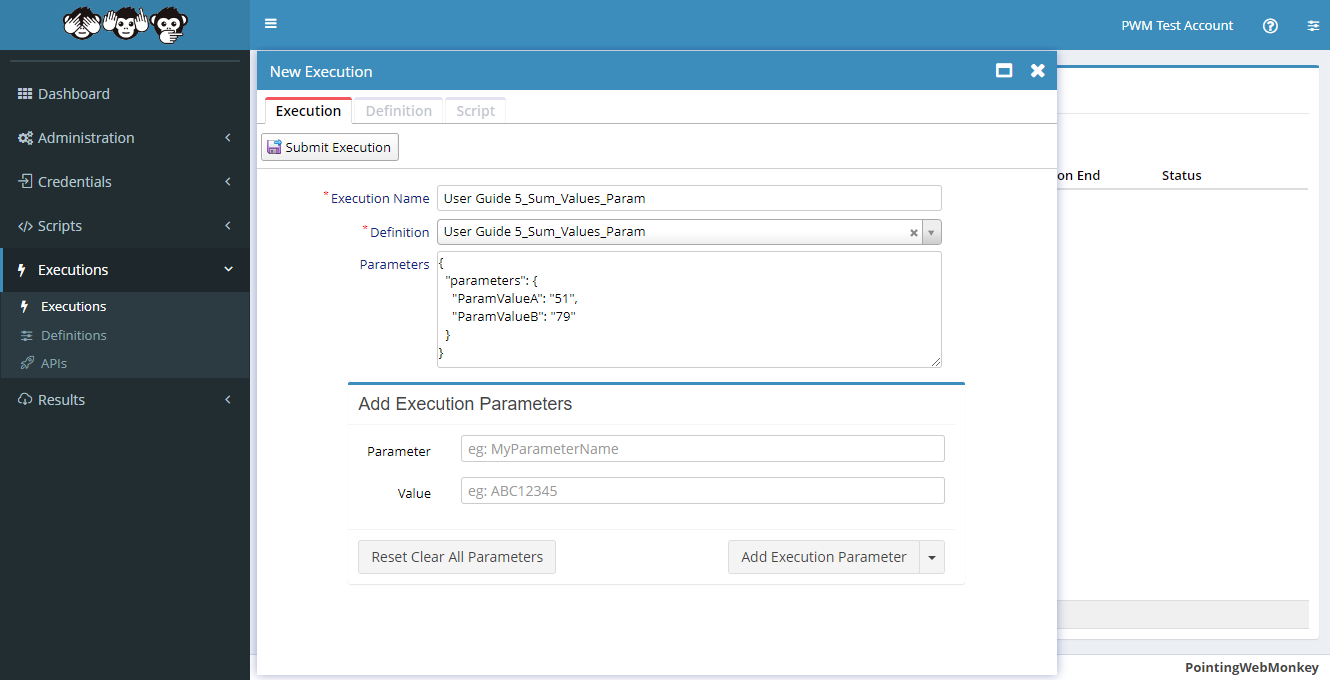
In this example we entered "ParamValueB"
(this is the second of the three 'Parameter Names' expected by the Script)
In the "Value" textbox under the 'Add Execution Parameters' section, enter a 'Value' for the the second 'Parameter'
In this example we entered "79"
(this will be the second of the three 'Parameter Values' expected by the Script)
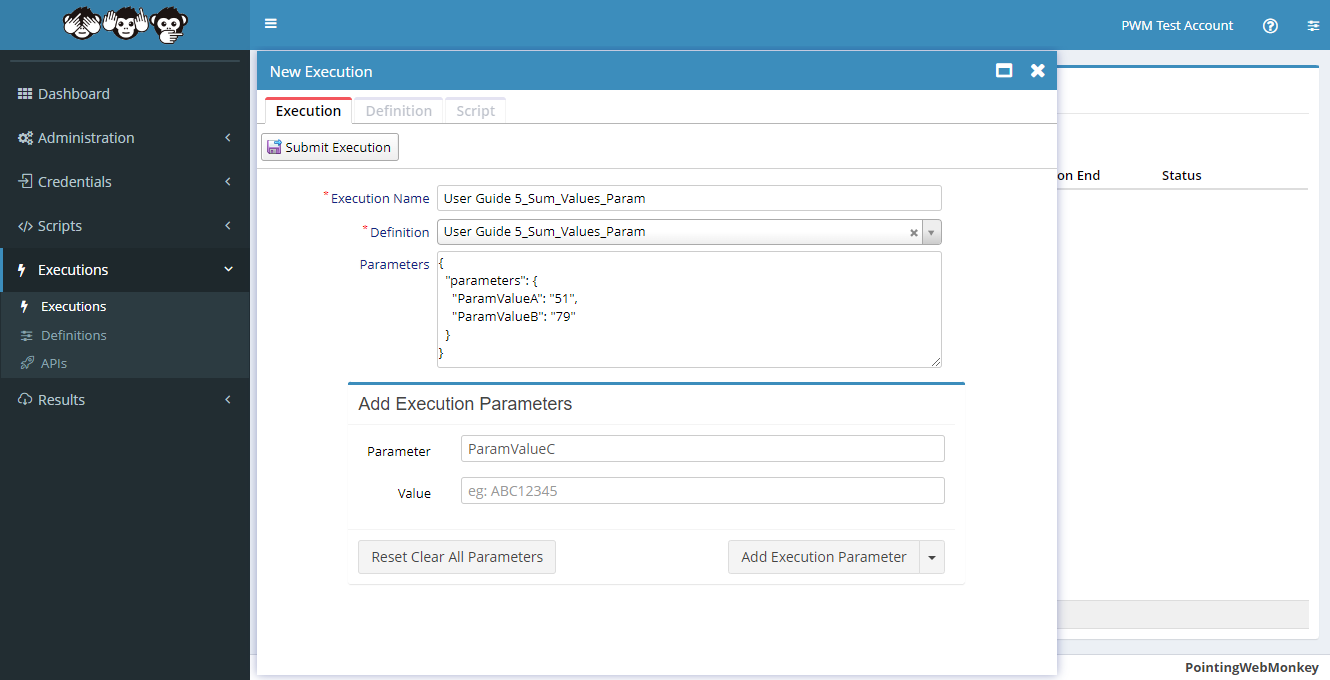
To add the new Execution Parameter click on the "Add Execution Parameter" button
The new 'Parameter Name' and 'Parameter Value' will be added to the 'Parameters' textarea in JSON format
In the "Parameter" textbox under the 'Add Execution Parameters' section, enter a 'Name' for the the third 'Parameter'
In this example we entered "ParamValueC"
(this is the third of the three 'Parameter Names' expected by the Script)
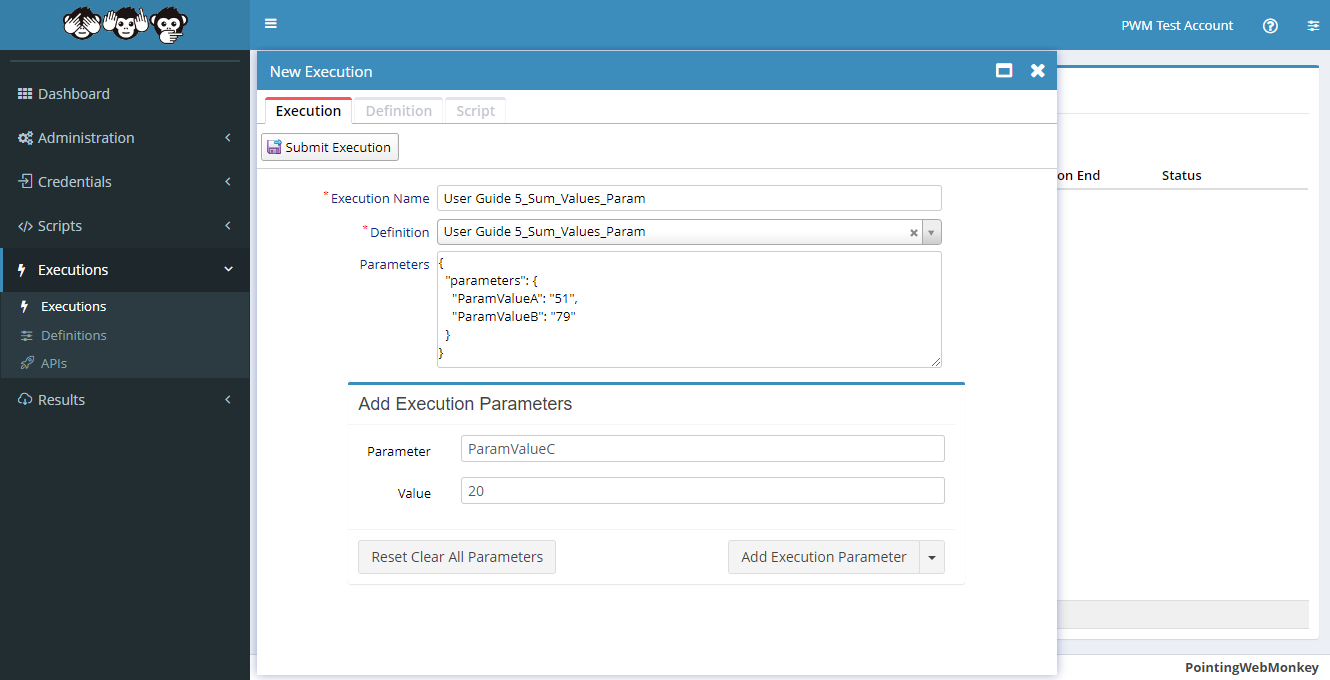
In the "Value" textbox under the 'Add Execution Parameters' section, enter a 'Value' for the the third 'Parameter'
In this example we entered "20"
(this will be the third of the three 'Parameter Values' expected by the Script)
To add the new Execution Parameter click on the "Add Execution Parameter" button
The new 'Parameter Name' and 'Parameter Value' will be added to the 'Parameters' textarea in JSON format
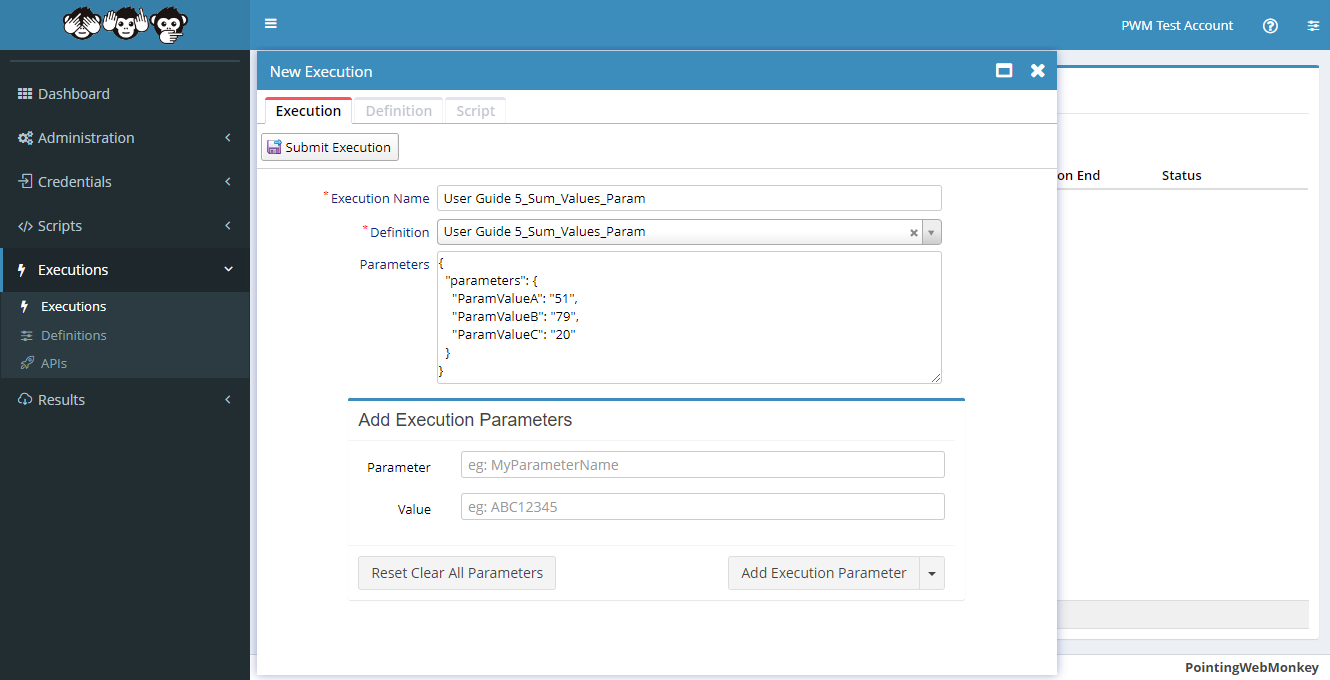
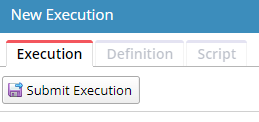
Once each of the fields have been filled, click the "Submit Execution" button
Once submitted it will appear in the "Executions" list under the "Execution Name" entered,
with the "Status" shown as "Queued"
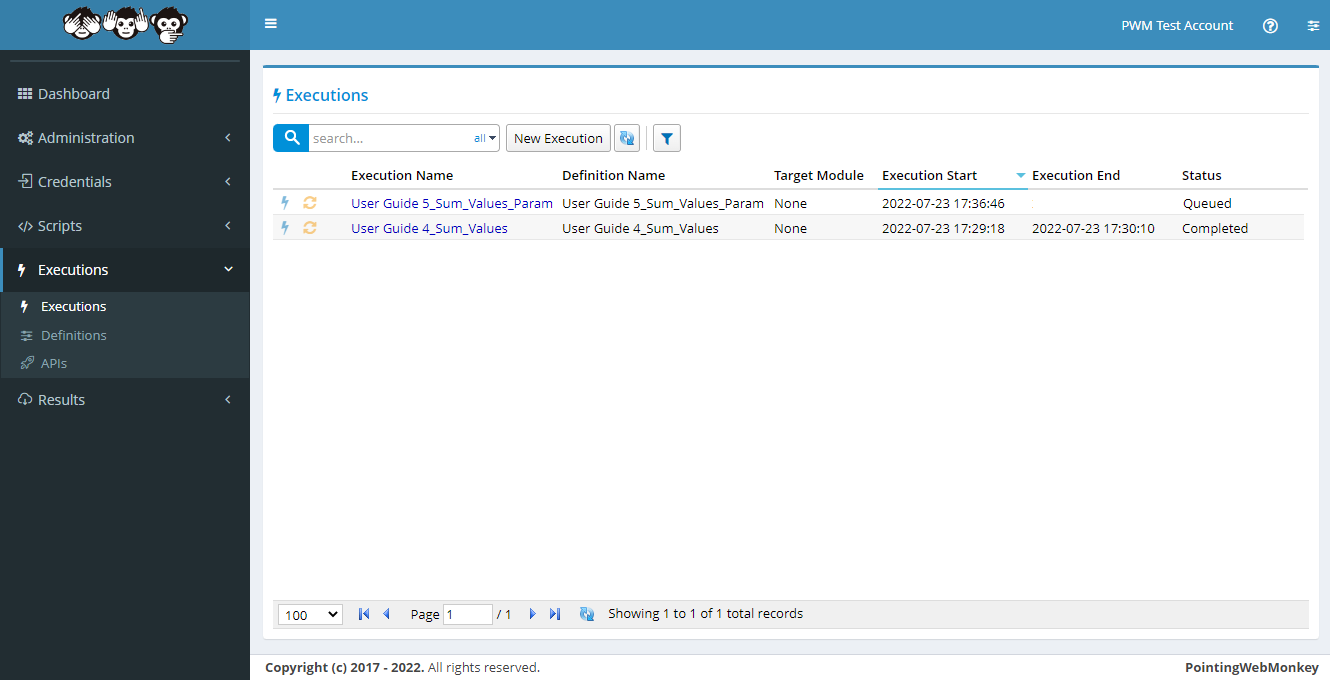
When the execution process begins the "Status" will change to "Processing"
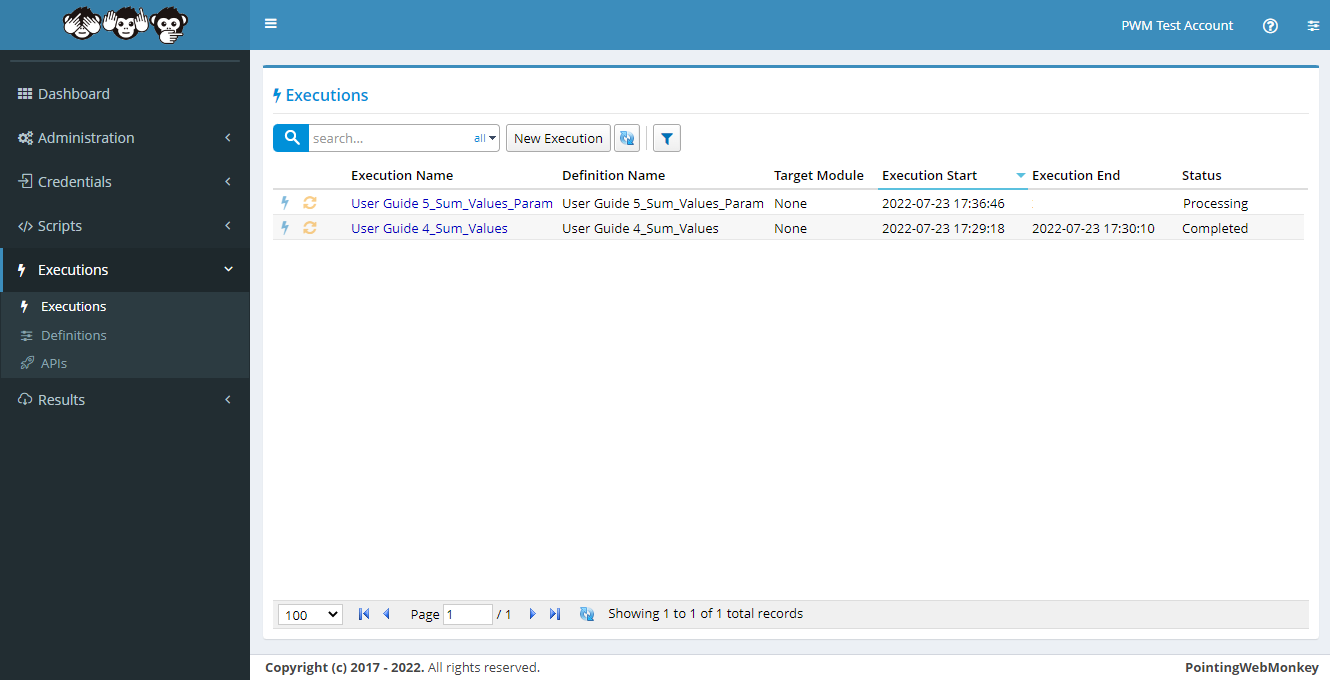
Once the execution process has run the "Status" will be changed to "Completed"
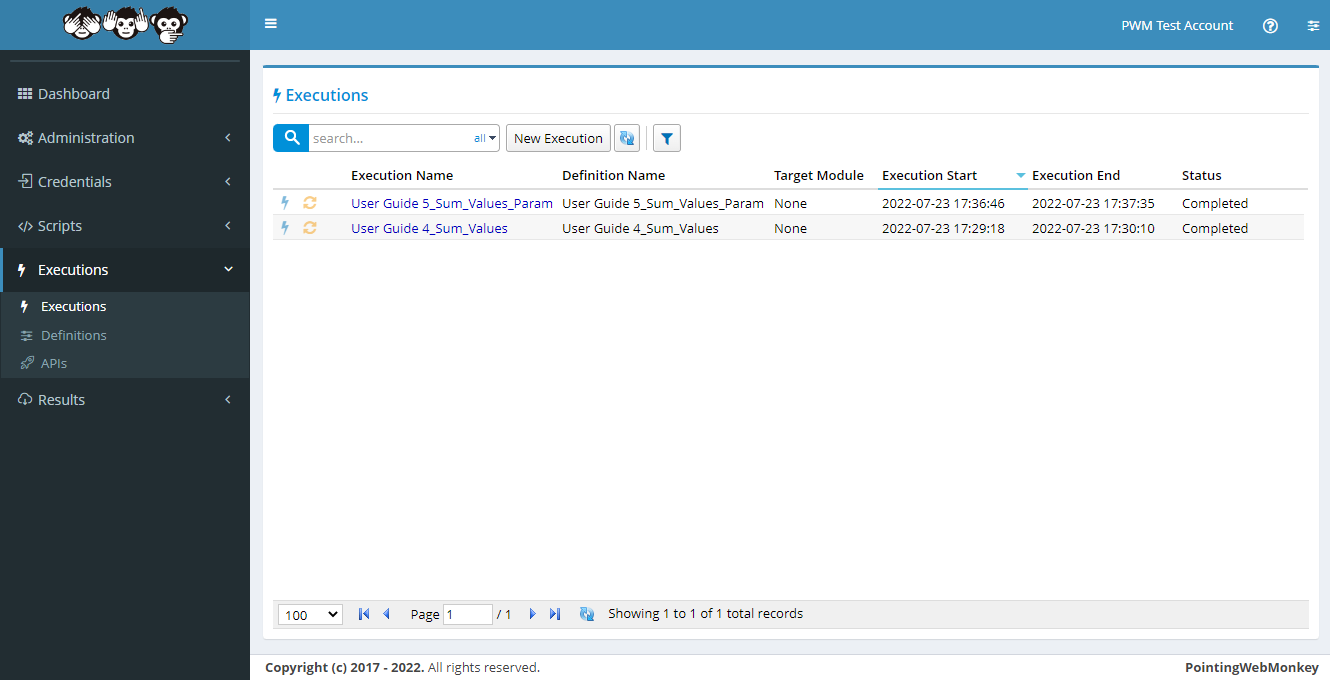
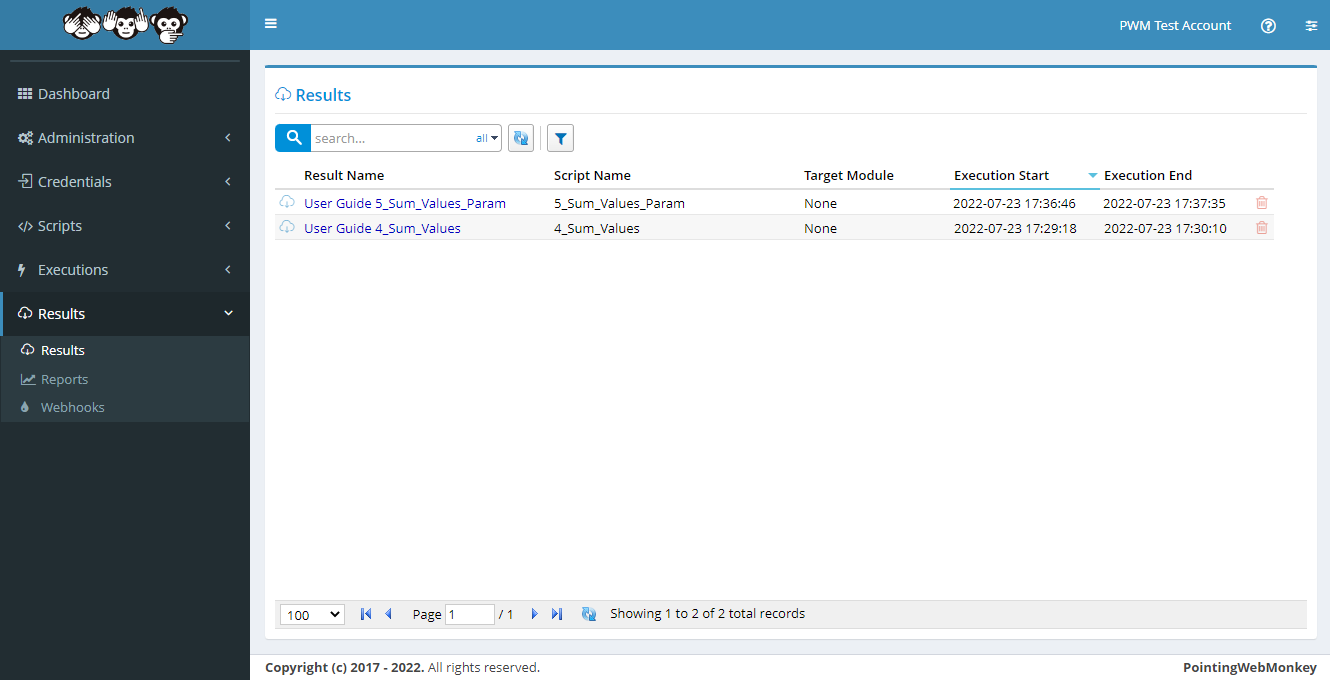
Results - Viewing Parameter ResultsClick on "Results" from the navigation menu on the left, and then click the "Results" option
To view the results of your Execution click on the relevant "Result Name"
In this example we selected "User Guide 5_Sum_Values_Param"
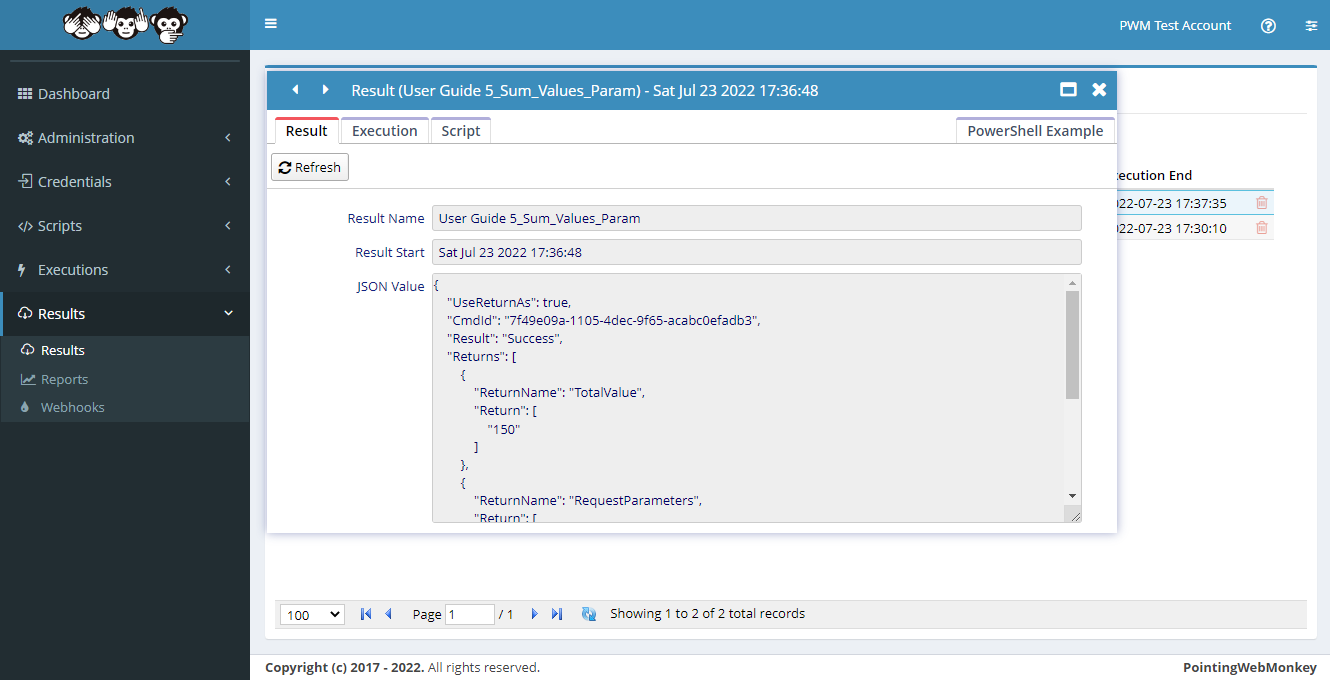
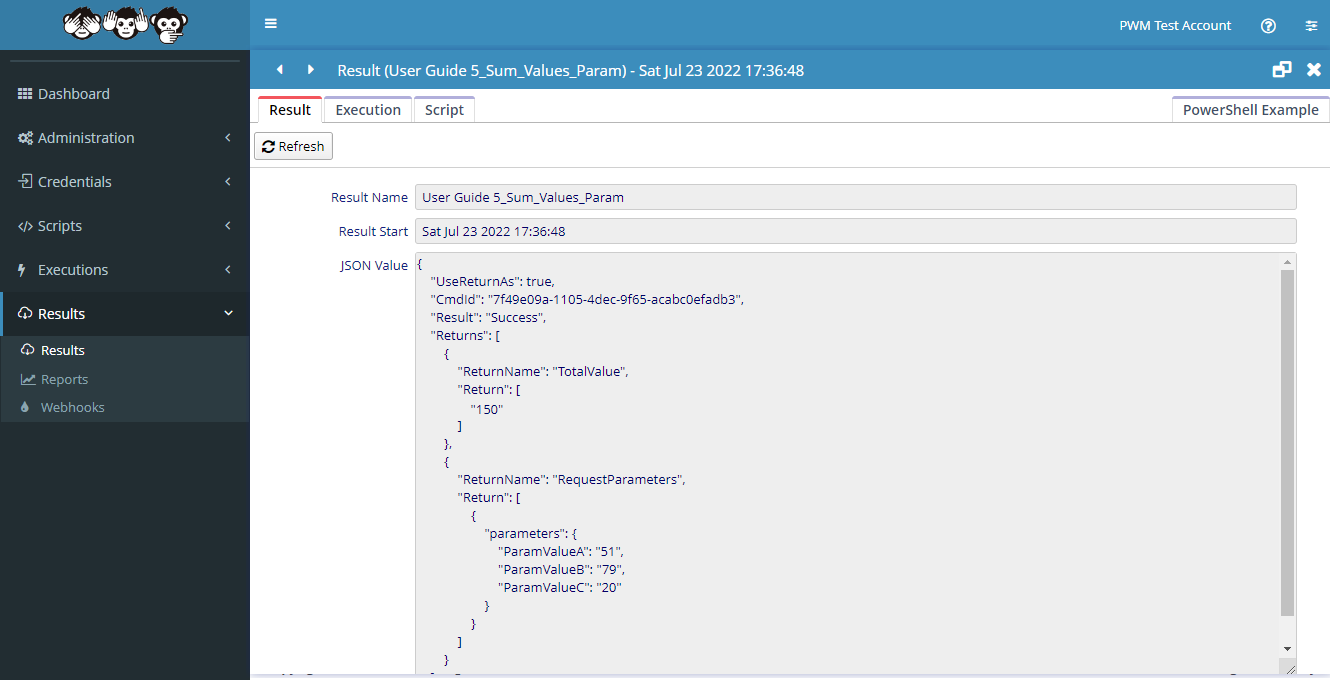
After clicking the "Result Name", the "Result" window will appear
a textbox showing the "Result Name"
a textbox showing the "Result Start"
a textarea showing the "JSON Value"
(the "JSON Value" is the 'Output' from the 'Execution' in JSON format)
Looking at the "JSON Value Output" we can see the "Total Value" returned is "150"
(The values from the "5_Sum_Values_Param Script" were "59 + 71 + 20" which equals a total of "150"
so our parameter script was successful)
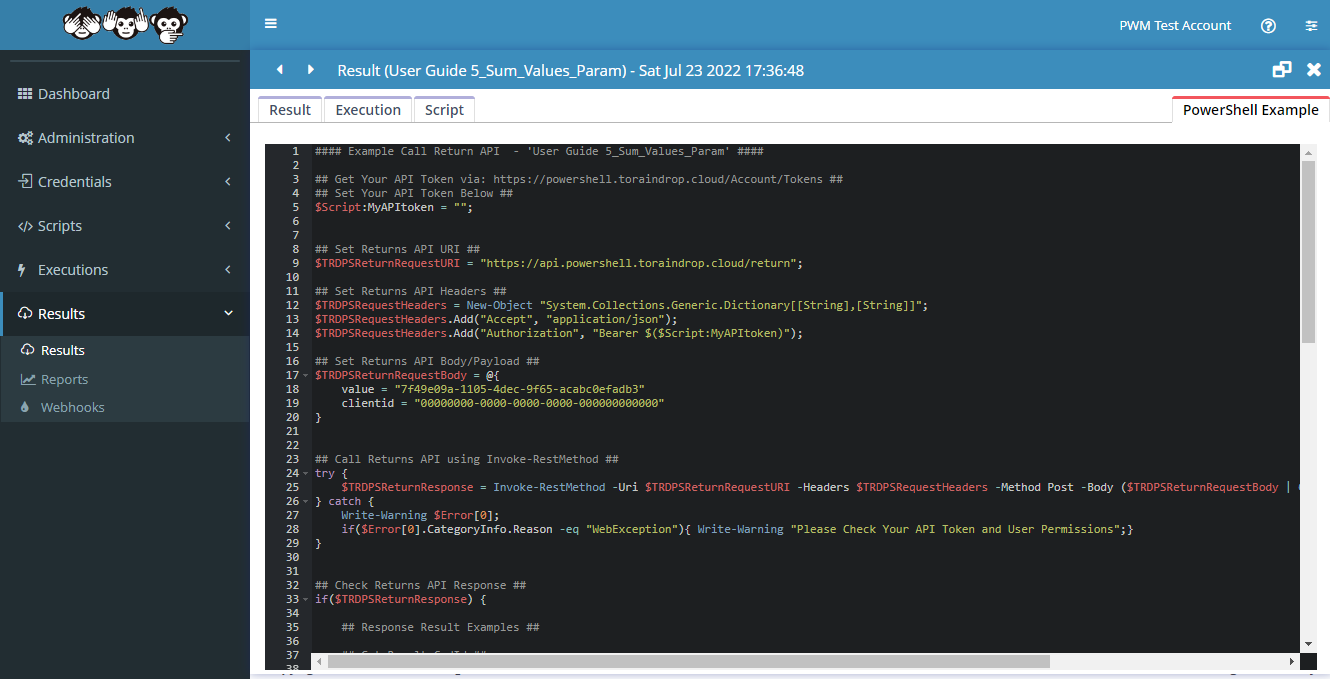
Clicking the "PowerShell Example" tab, will display example PowerShell code for accessing the "JSON Value Output"
and each of the values returned in the "JSON Result Data"