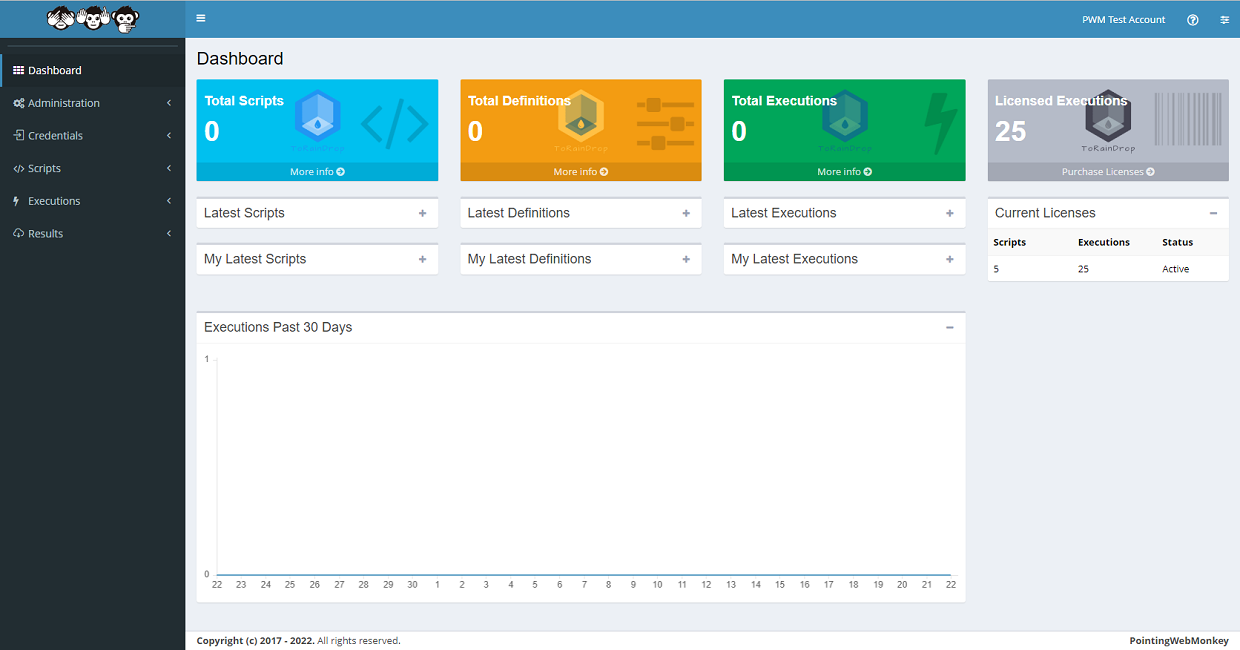
A "ToRainDrop Script" is made up of a "PowerShell Script" a "Script Category", and a "Script Host". Without each of these a Script cannot be created
This step by step guide will show how to create a "Script Category" and a "PowerShell Script" and use these to create a "ToRainDrop Script"
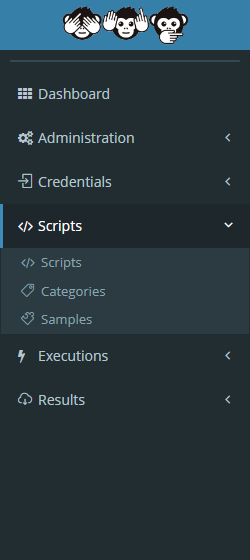
From the navigation menu on the left, click on "Scripts", giving a drop down of three options
Clicking either of the three options available, will take you to each corresponding "Scripts" section
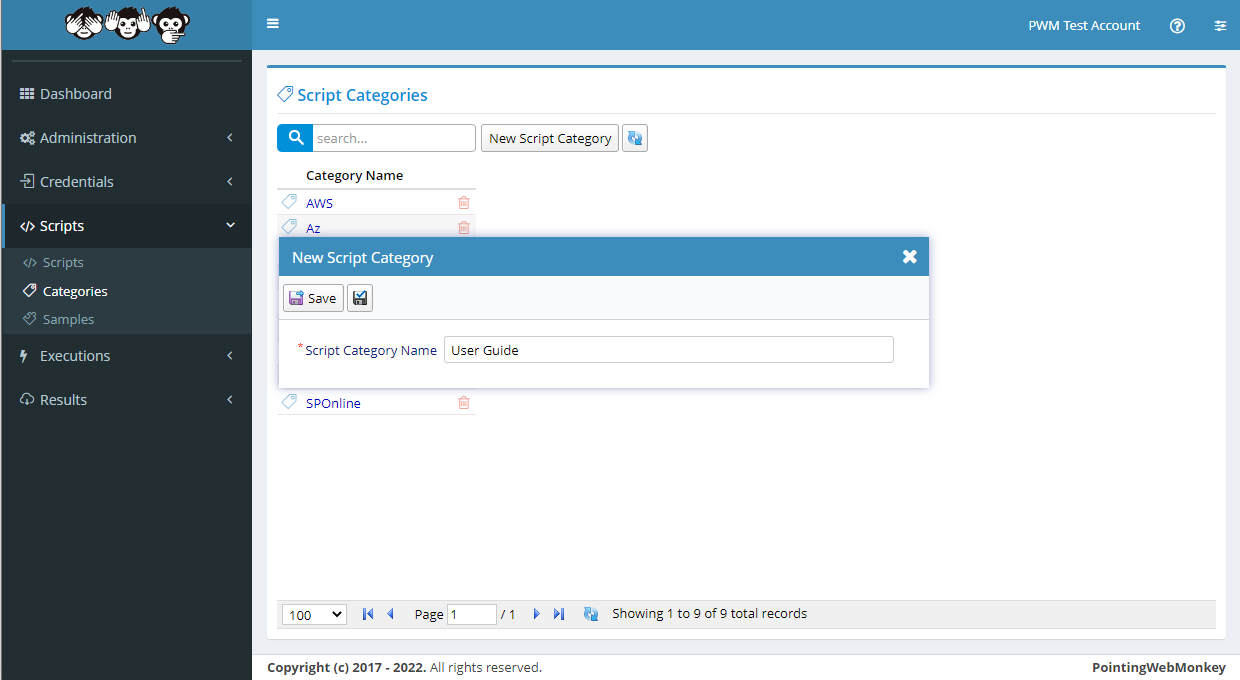
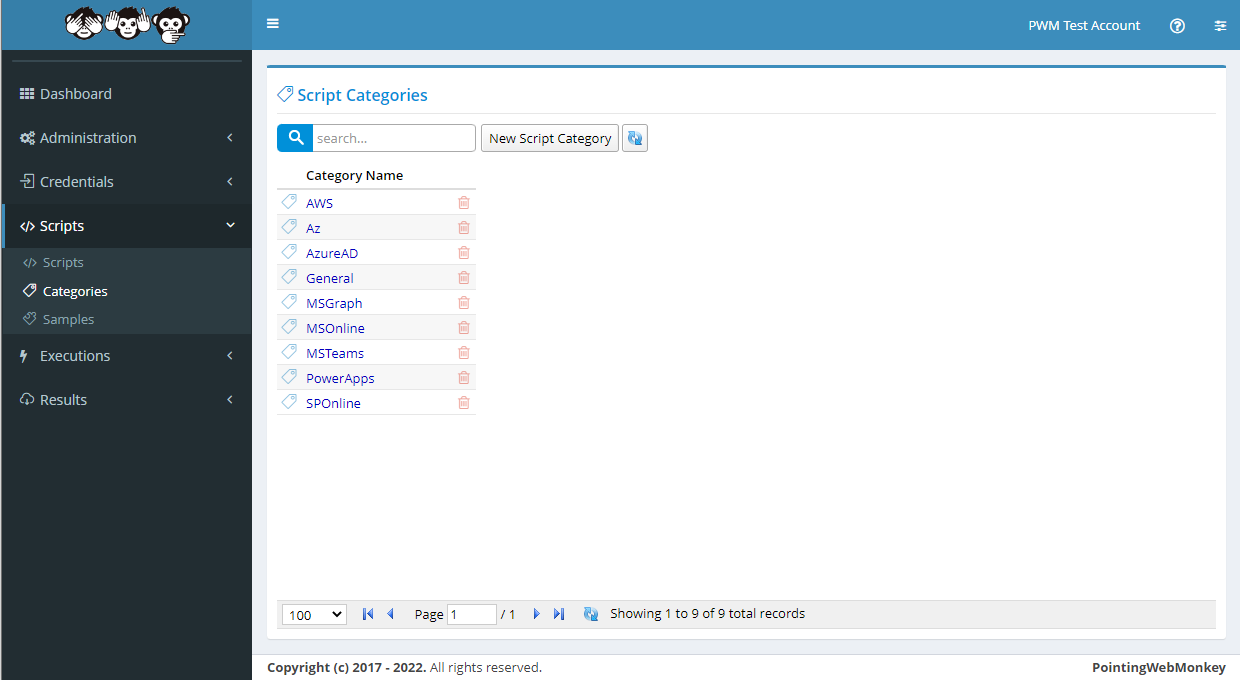
Categories - Adding a new Script CategoryTo make a new Script Category click on the "New Script Category" button
After clicking the "New Script Category" button, the "New Script Category" window will appear with
a textbox for a "Script Category Name"
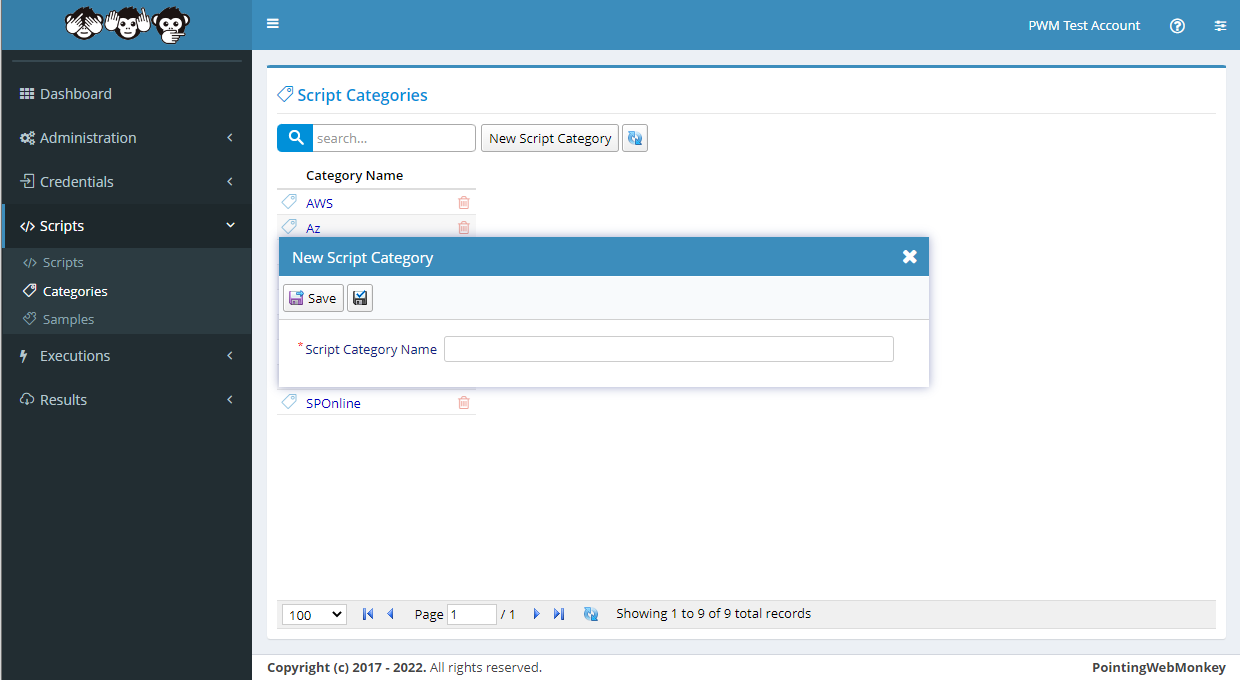
In the "Script Category Name"" textbox enter a 'Name for the Script Category' that is easy to recognize, but is also
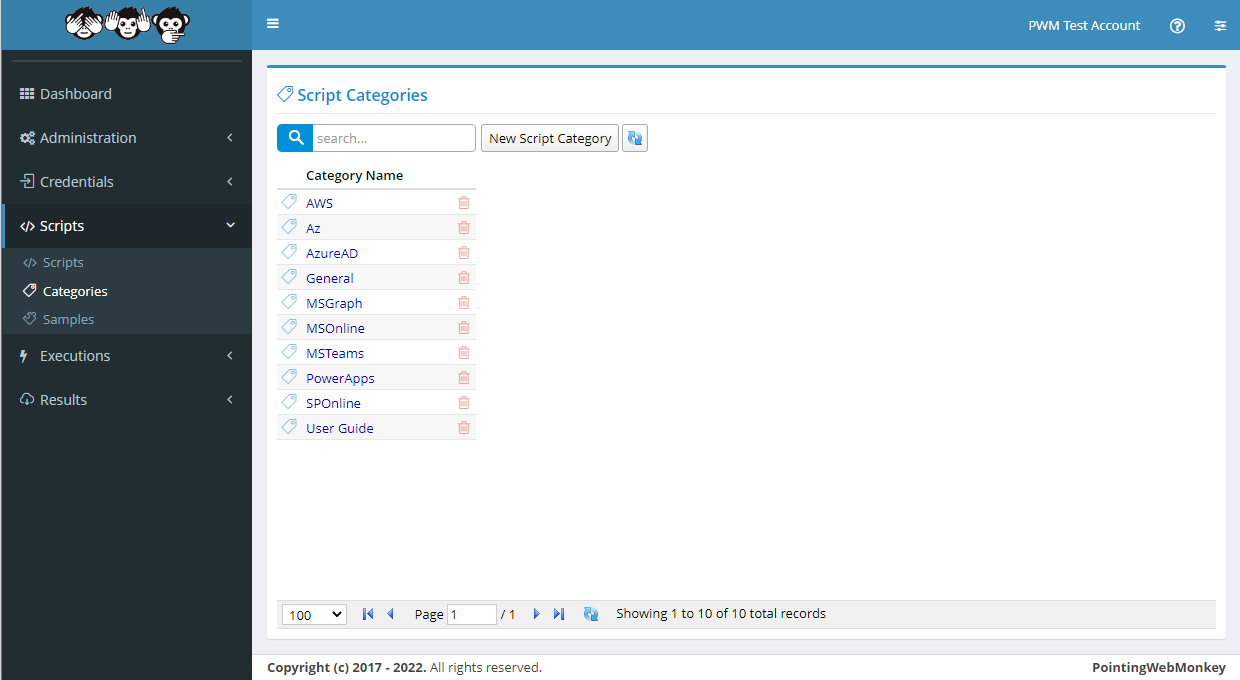
easy to distinguish from other "Script Categories"In this example we entered "User Guide" as the 'Name of the Script Category'
Click the "Save" button
Once saved it will appear in the "Script Categories" list under the "Category Name" entered
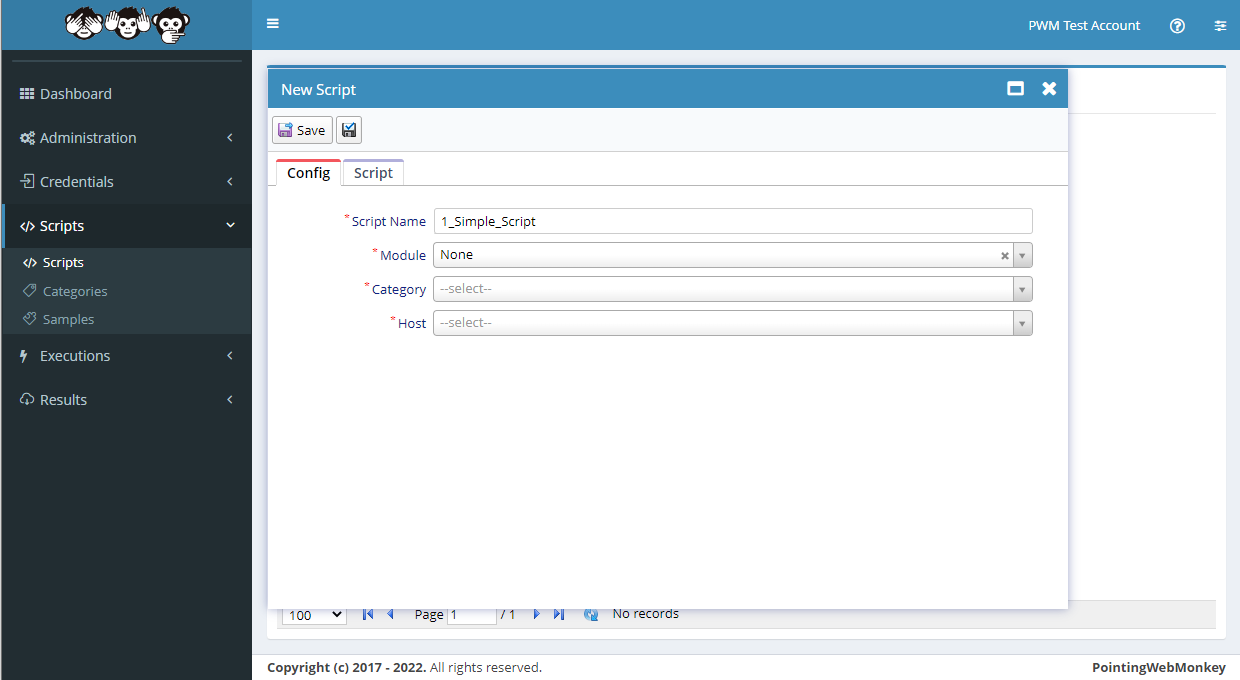
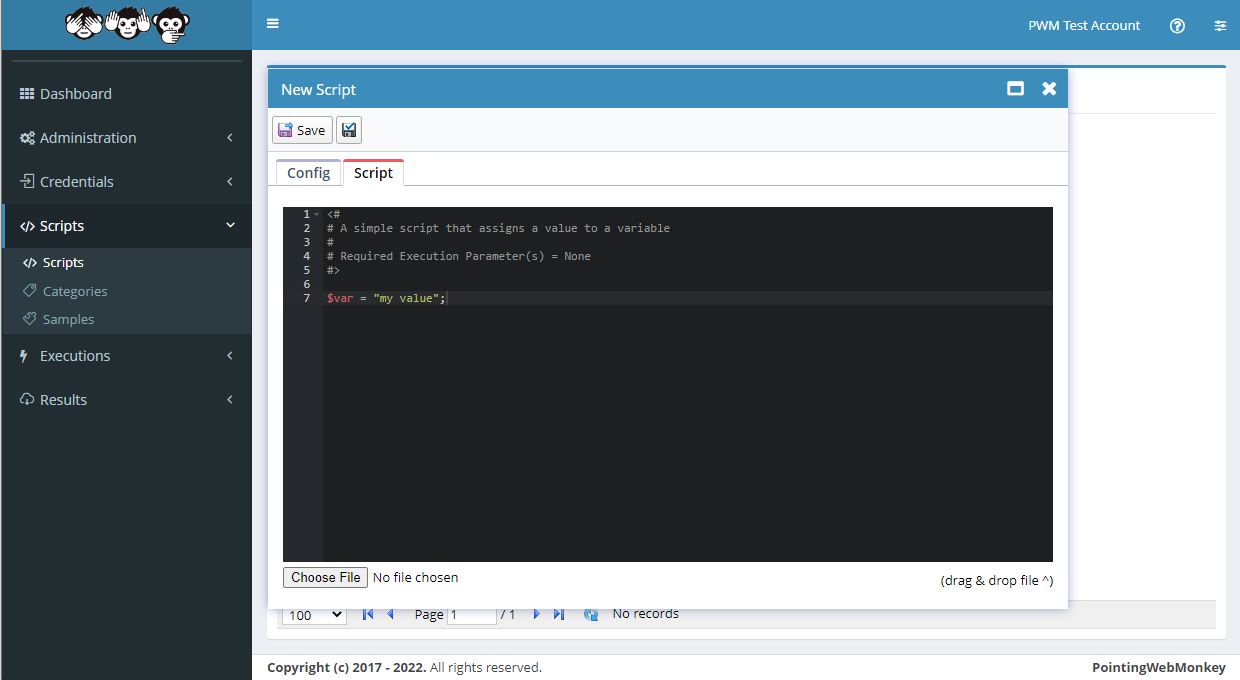
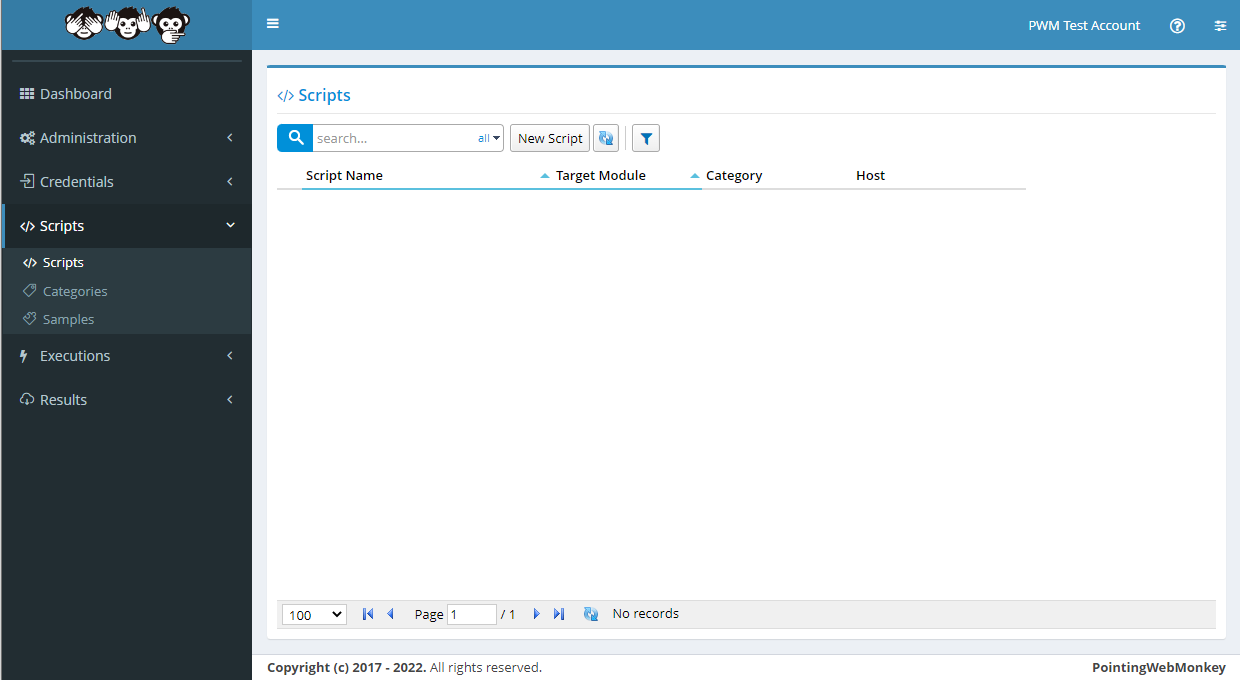
Scripts - Adding a new ScriptTo make a new Script click on the "New Script" button
After clicking the "New Script" button, the "New Script" window will appear with
a textbox for a "Script Name"
a drop-down for a "Module"
a drop-down for a "Category"
a drop-down for a "Host"
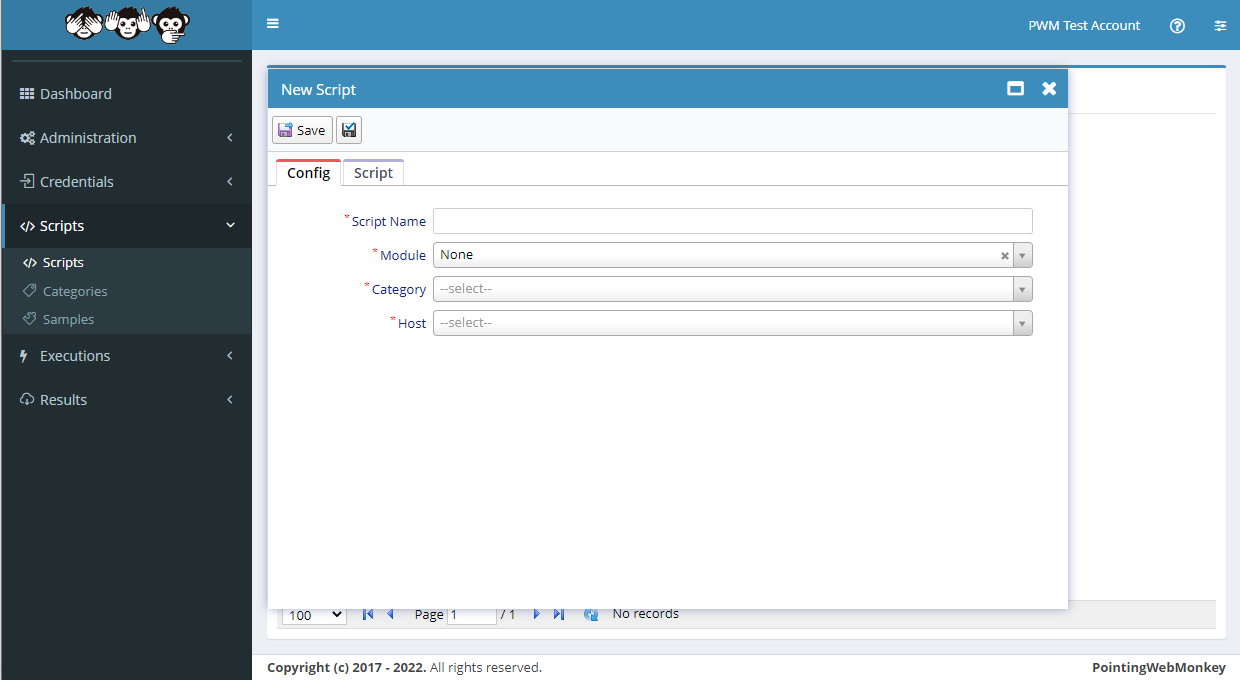
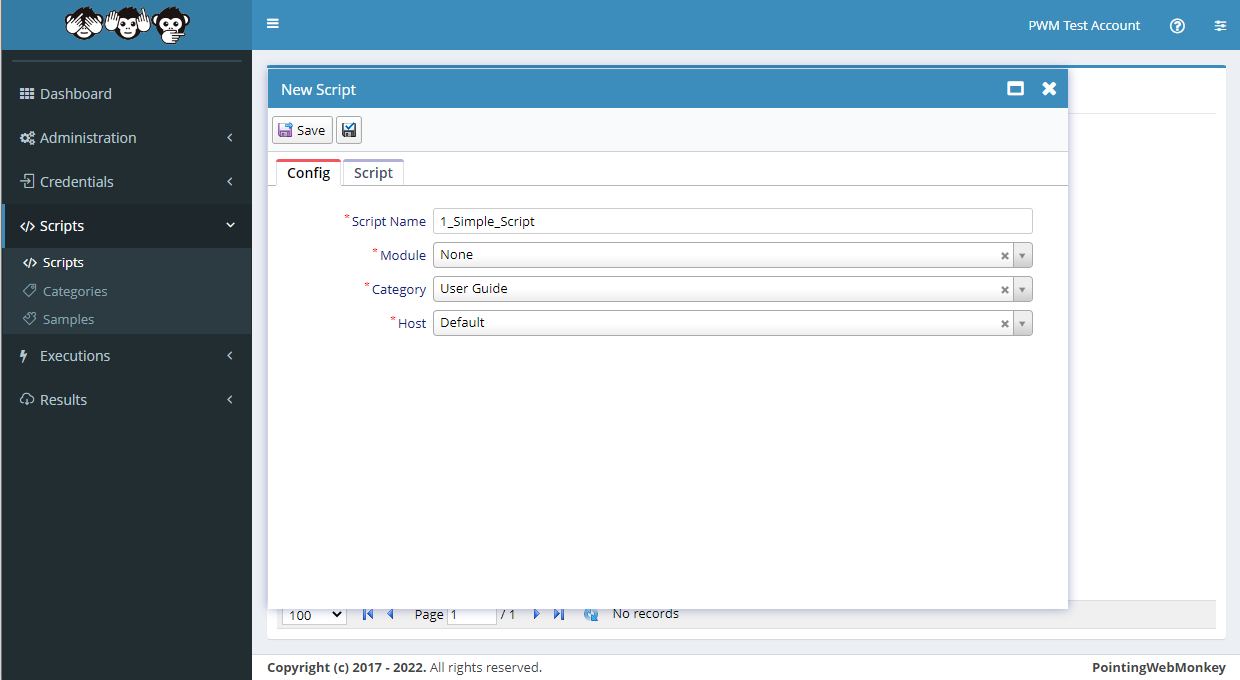
In the "Script Name" textbox enter a 'Name for the Script' that is easy to recognize, but is also
easy to distinguish from other "Scripts"In this example we entered "1_Simple_Script" as the 'Name of the Script'
and selected "None" as the 'Module'
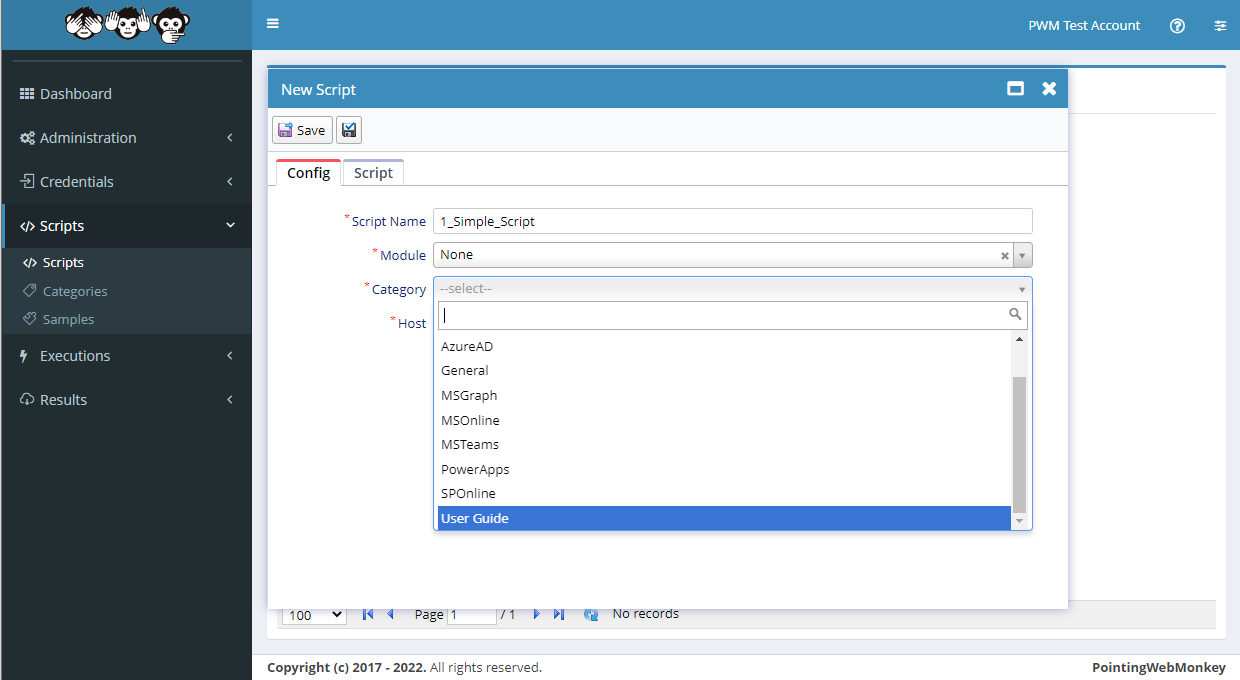
Select a Category from the list available in the drop-down menu
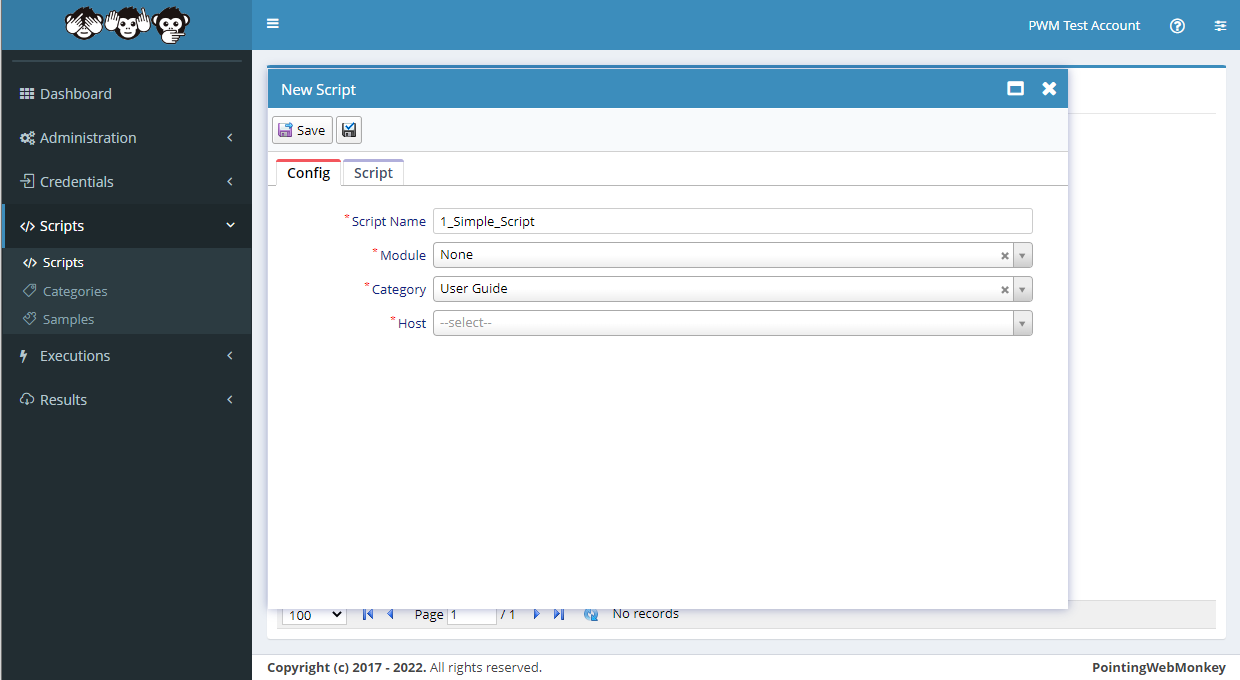
In this example we selected "User Guide"
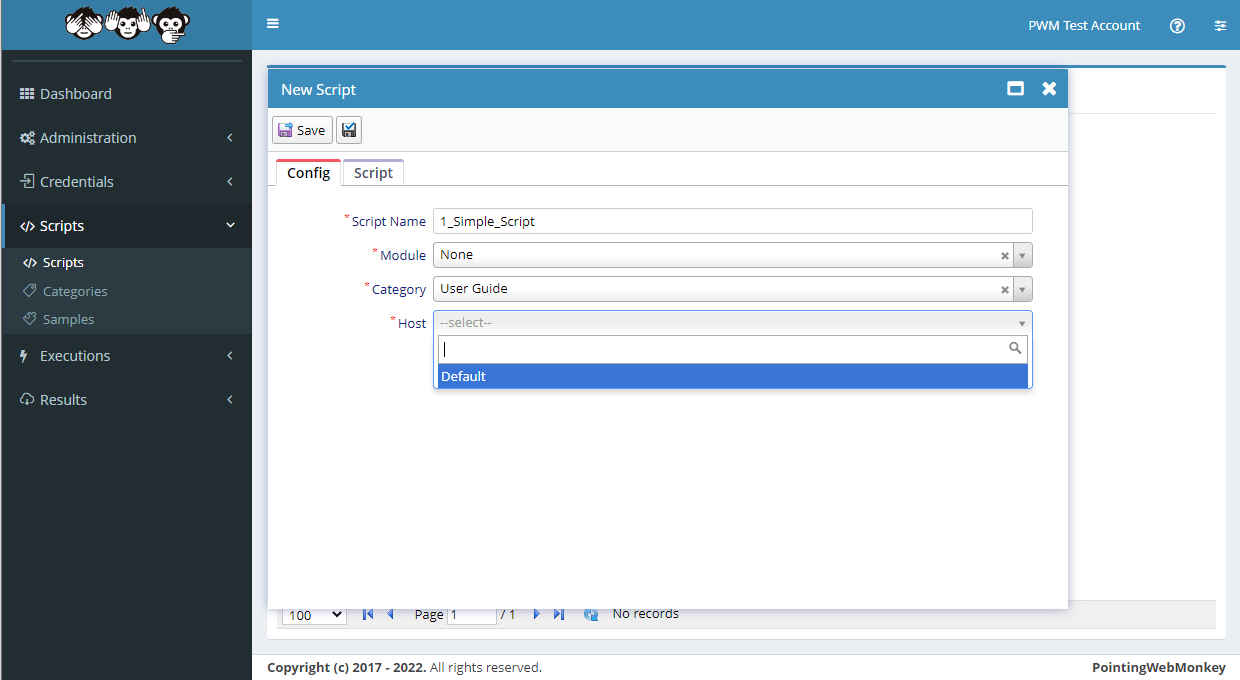
Select a Host from the list available in the drop-down menu
In this example we selected "Default"
Click on the 'Script' tab
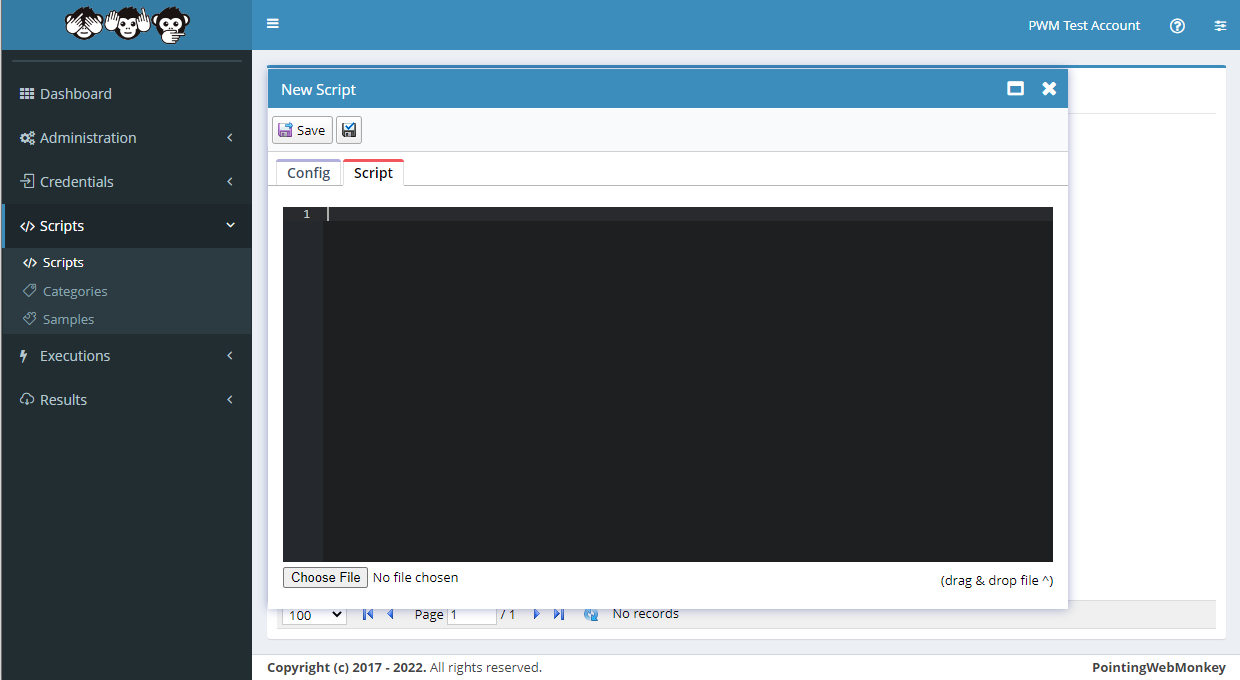
Enter a "PowerShell Script"
In this example we entered
                            <#

                            # A simple script that assigns a value to a variable

                            # Required Execution Parameter(s) = None

                            #>


                            $var = "my value";
Click the "Save" button
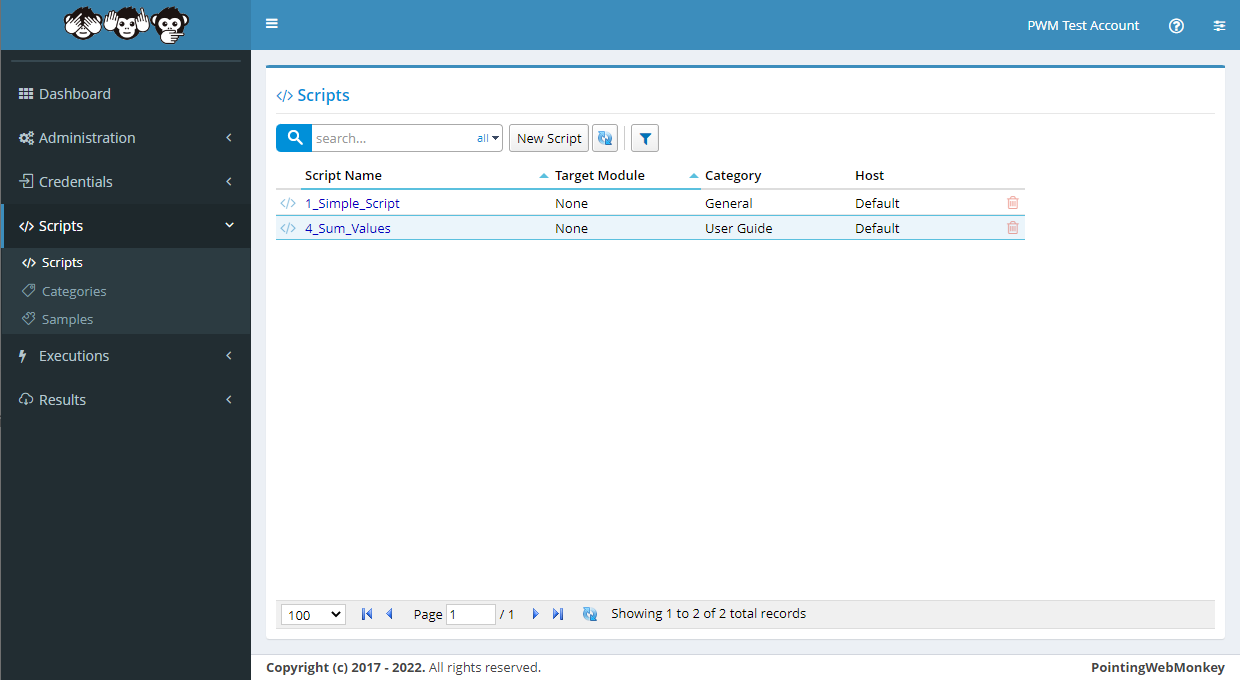
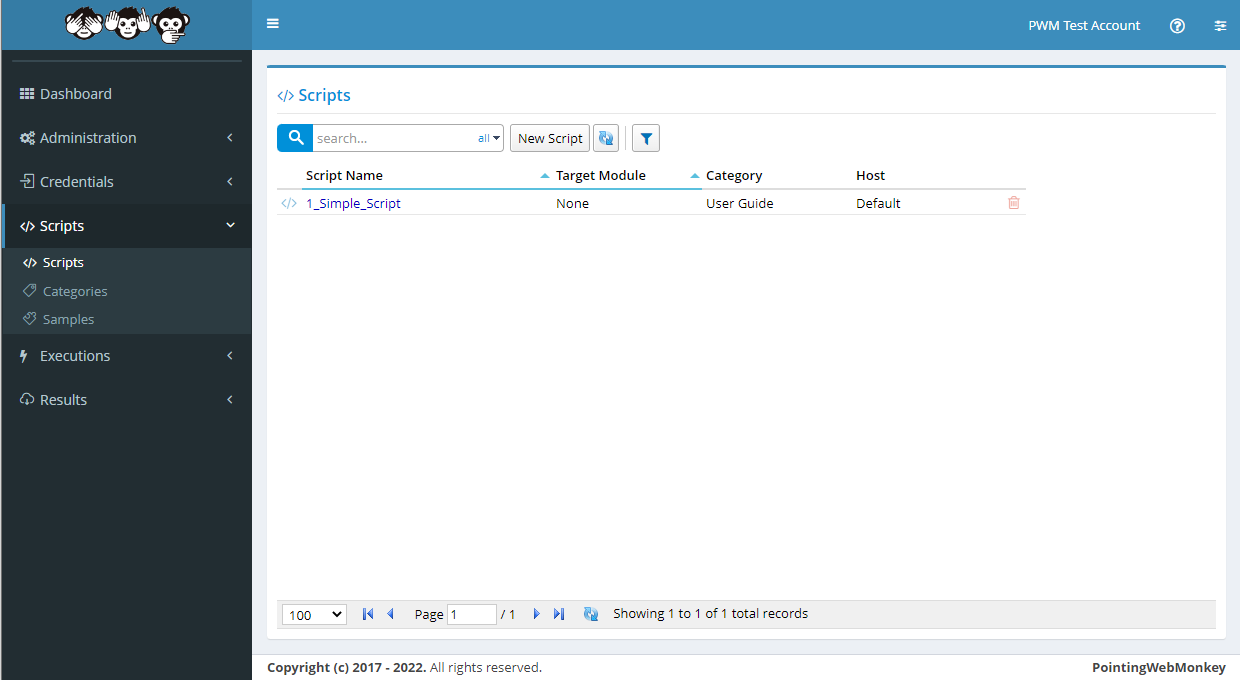
Once saved it will appear in the "Script" list under the "Script Name" entered
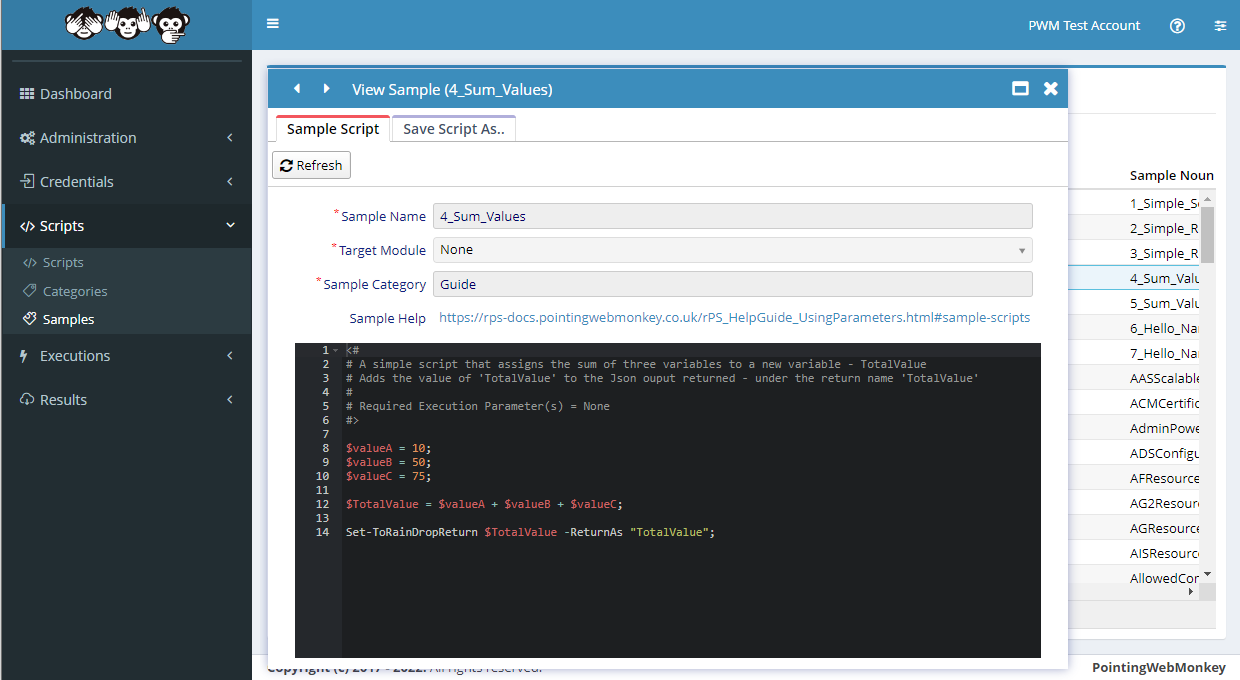
Sample Scripts - Using Sample Scripts to create a new ScriptTo make a new Script click on a "Sample Script"
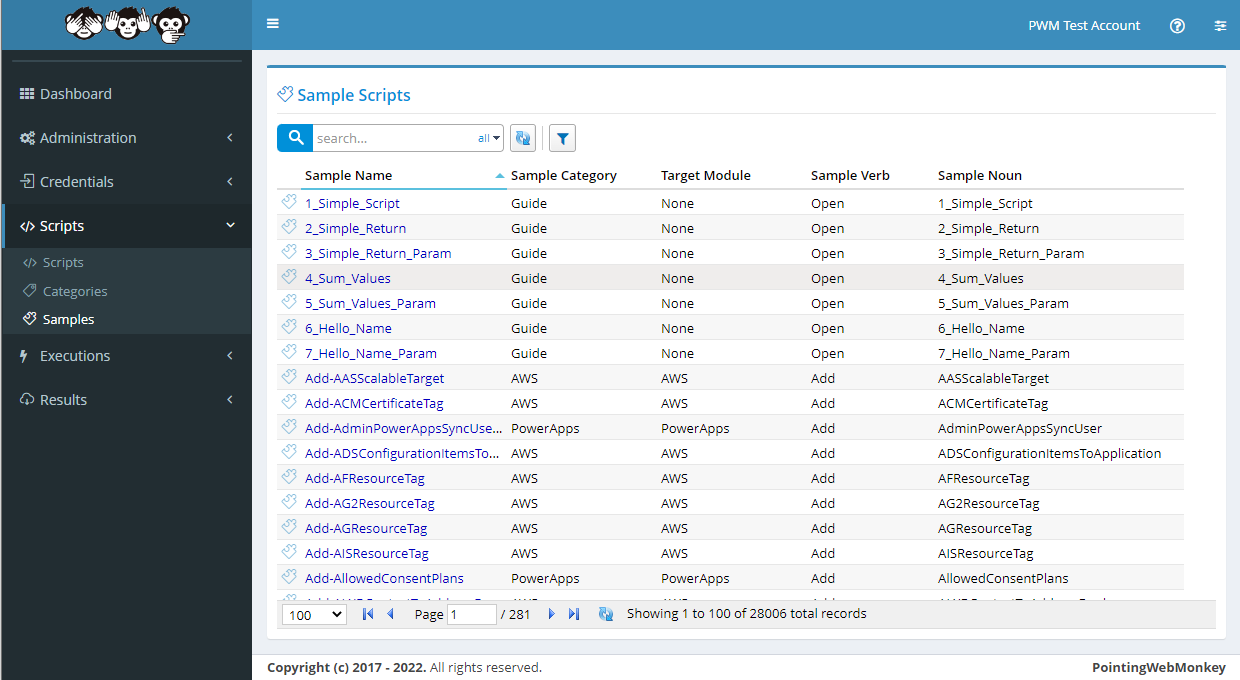
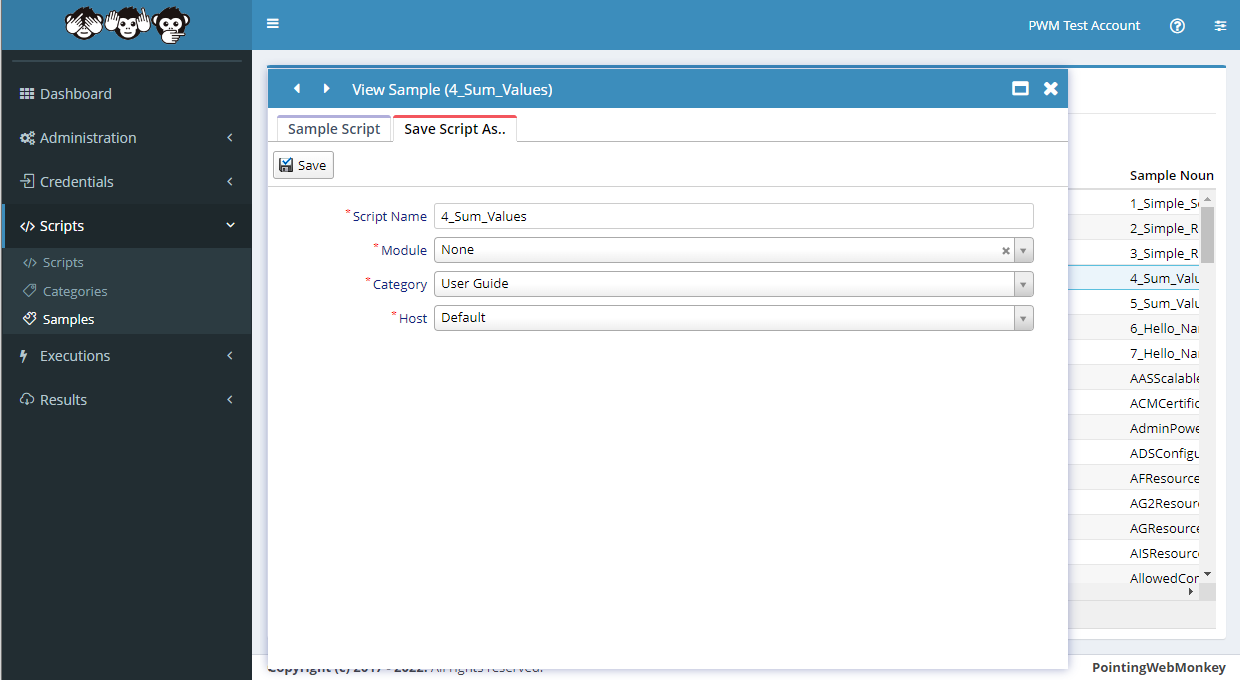
After clicking on a "Sample Script", the "View Sample" window will appear
In this example we selected the "4_Sum_Values" sample
Note use of the Set-ToRainDropReturn syntax for the script output
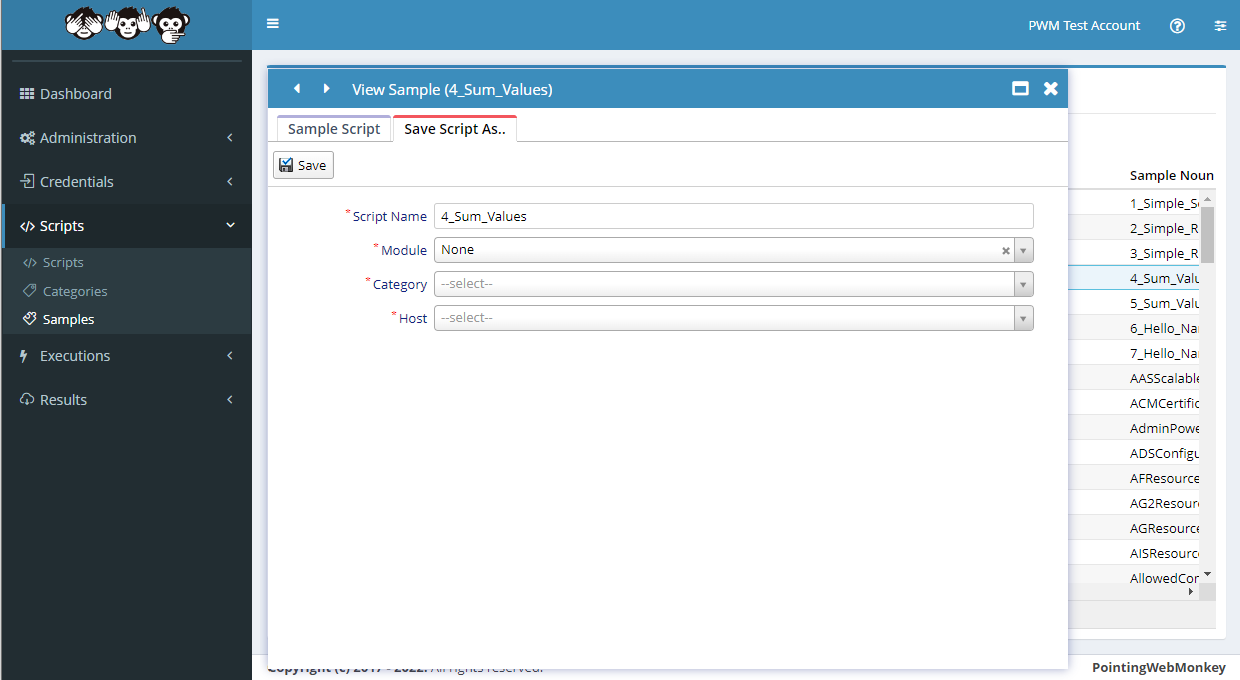
Click on the 'Save Script As' tab
In the "Script Name" textbox enter a 'Name for the Script' that is easy to recognize, but is also
easy to distinguish from other "Scripts"In this example we entered "4_Sum_Values" as the 'Name of the Script'
and selected "None" as the 'Module'
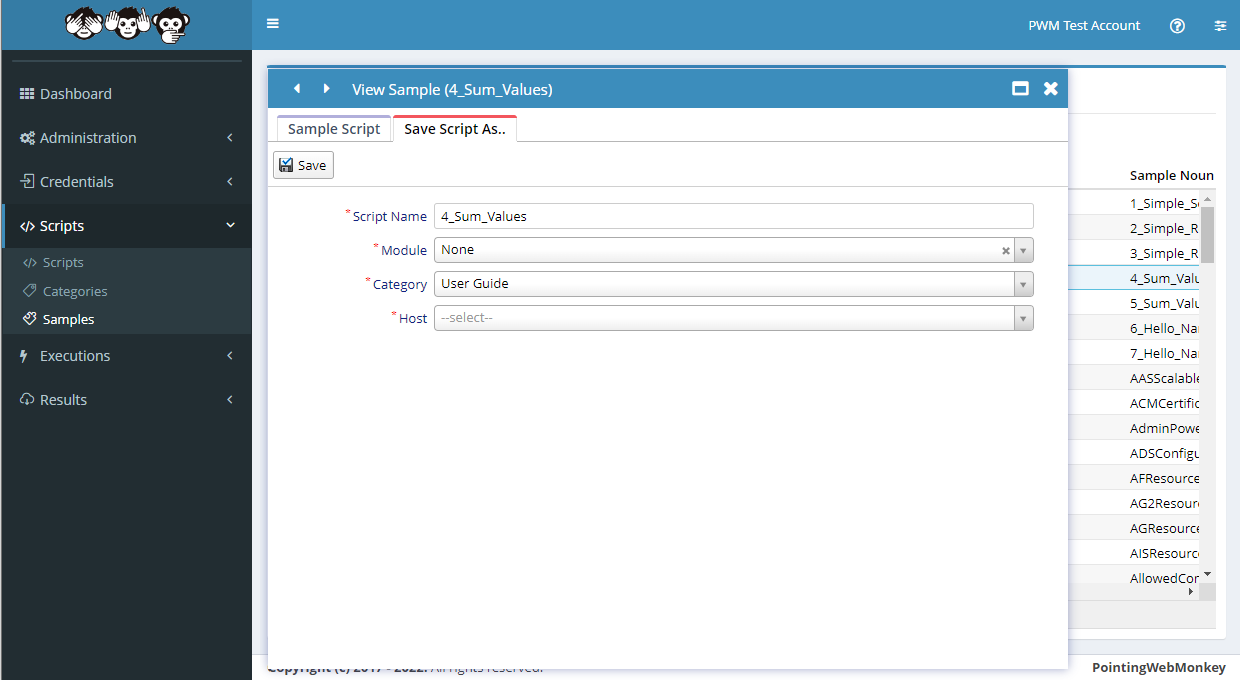
Select a Category from the list available in the drop-down menu
In this example we selected "User Guide"
Select a Host from the list available in the drop-down menu
In this example we selected "Default"
Once all the boxes have been filled click the "Save" button
Once saved the newly created script will appear in the "Scripts" list under the "Script Name" entered
(from the 'Scripts' navigation menu on the left)